


Microsoft is moving Teams Android device management from the Teams admin center to the Teams Rooms Pro Management portal. Learn the licensing, role, network, and device-readiness steps to complete before TAC workflows are retired in September 2026.

Last February, Microsoft posted roadmap item 55235, “Microsoft Teams One-stop admin portal for Teams devices with Teams Rooms Pro Management”. They then published Transitioning Teams Android Device Management from Teams Admin Center to the Teams Rooms Pro Management Portal.
The gist of these articles is that the management of Teams Rooms on Android, Teams Phones, Teams Panels, and SIP devices will be moving from the Teams Administration Center (TAC) to the Teams Rooms Pro Management Portal (PMP). Once moved, the device inventory, monitoring, and management of these devices will all reside in the PMP. Teams Windows devices were fully moved to the PMP a year ago.
Everything you are currently using TAC for to manage these devices will be retired in September 2026. Organizations must prepare for this change and begin moving away from device management in the TAC. There are a few steps that must be taken to ensure a smooth and uninterrupted transition to the PMP.
This article focuses on what you need to do to make the transition. Later information will be provided addressing important features and settings in the PMP as they relate to managing your Teams Devices, especially Teams Phones and SIP phones, in the PMP.
Requirements
Rollout & Tenant Types
The change is being rolled out to all tenant types. Custom backgrounds for Android Meeting Rooms and Panels are not being rolled out to any tenant type.:
Public– Including EDU
- Started in June 2026.
- Some features won’t start rolling out until Mid-July 2026:
- Hotline setting for Phones.
- Line keys for Phones.
- Device lock pin for Phones.
- Device provisioning for Android Meeting Rooms, Panels and Phones.
- SIP device provisioning.
GCC
- Starting in August 2026, all features except:
- SIP device provisioning.
- These remote actions:
- Sign-in/sign-out.
- Device remove/Unenroll.
- Collect logs.
GCCH
- Started in July 2026, all features except:
- SIP device provisioning.
- These remote actions:
- Sign-in/sign-out.
- Device remove/Unenroll.
- Collect logs.
DOD
- Started in July 2026, all features except:
- SIP device provisioning.
- These remote actions:
- Sign-in/sign-out.
- Device remove/Unenroll.
- Collect logs.



Licensing
Organizations must own at least one (1) Teams Meeting Room license. You do not actually have to assign the license to an account to access the PMP:
Teams Rooms Standard
- This is a legacy license that is no longer available.
Teams Rooms Basic
- All tenants are provided with twenty-five (25) basic licenses.
- They do not show up in your license inventory, they must be purchased.
- The good news is they are free!
Teams Rooms Pro
- Microsoft lists these at $40.00 per room/month.
- They have more features and management capabilities than the basic license.
- The license provides:
- AI-powered operations for automating updates, problem detection, and issue resolution at scale.
- Endpoint management with Intune and Configuration Manager.
- Entra ID providing advanced grouping and conditional access.
If you are implementing Teams Room devices, eGroup recommends purchasing a Pro-level license to be able to take advantage of its additional security features.
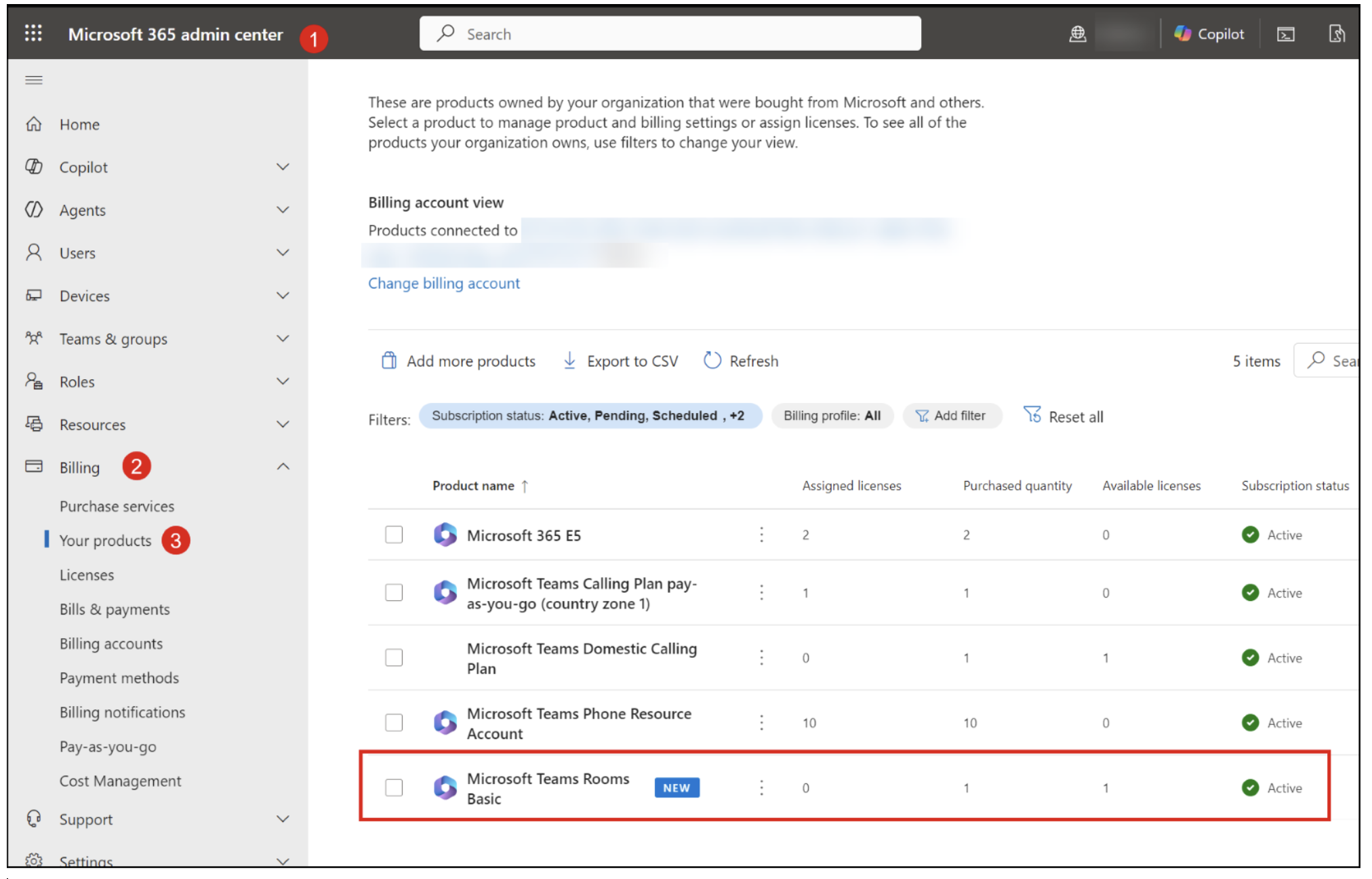
You can check if you own any of these licenses by browsing to the Microsoft 365 admin center and checking under Billing->Your Products (you must have a required role to view these).
Roles
To access the portal, you must have one of these roles:
- Global Administrator.
- Teams Administrator.
- Teams Device Administrator.
- Global Reader.
If you are already using the portal and have configured PMP built-in roles, you must be a:
- Teams Rooms Pro Manager
- Site Lead
- Site Technician
For further information, please refer to Role-based access control in the Microsoft Teams Rooms Pro Management Portal – Microsoft Teams | Microsoft Learn



Required URLs
Please refer to Microsoft Teams Rooms on Windows and Teams Android device security– Microsoft Teams | Microsoft Learn for guidance on room security for Windows and Android equipment.
For all tenant types, ensure that these URLs are allowed on your network:
- mmrprodnoamcbiot.azure-devices.net
- mmrprodnoamtciot.azure-devices.net
- mmrprodnoamphonesiot.azure-devices.net
- mmrprodnoampanelsiot.azure-devices.net
- mmrprodemeacbiot.azure-devices.net
- mmrprodemeatciot.azure-devices.net
- mmrprodemeaphonesiot.azure-devices.net
- mmrprodemeapanelsiot.azure-devices.net
- mmrprodapaccbiot.azure-devices.net
- mmrprodapactciot.azure-devices.net
- mmrprodapacphonesiot.azure-devices.net
- mmrprodapacpanelsiot.azure-devices.net
Additionally, for:
GCC Tenants
- mmrprodnoamcbiot.azure-devices.net
GCCH Tenants
- mmrgcchiot.azure-devices.us
DOD Tenants
- mmrdodiot.azure-devices.us
Teams Admin Agent On The Phones
*This is the requirement that can get organizations into trouble. If you get this wrong, you will not be able to manage your Teams Phones after September 2026! (There is a way to fix this, but it won’t be easy!)
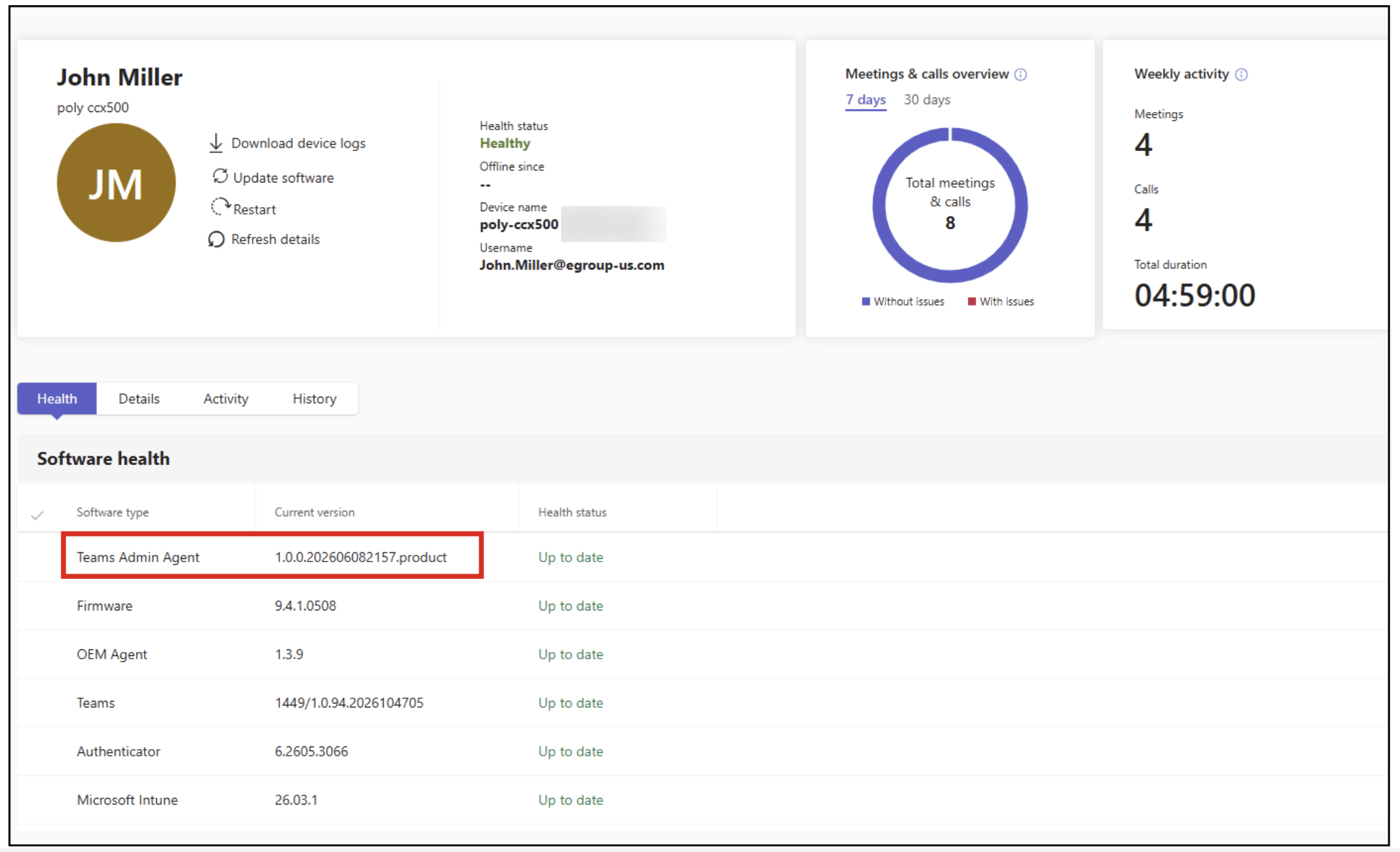
- Teams Android Phones must be updated to version “1.0.0.202606082157.product” of the “Teams Admin Agent”. You may see this version referred to as “AA 830”.
- This requirement applies to all makes and models of Native Teams Phones.
- It does not apply to SIP Phones connected to Teams through the Teams SIP Gateway.

Checking The Version Of The Admin Agent
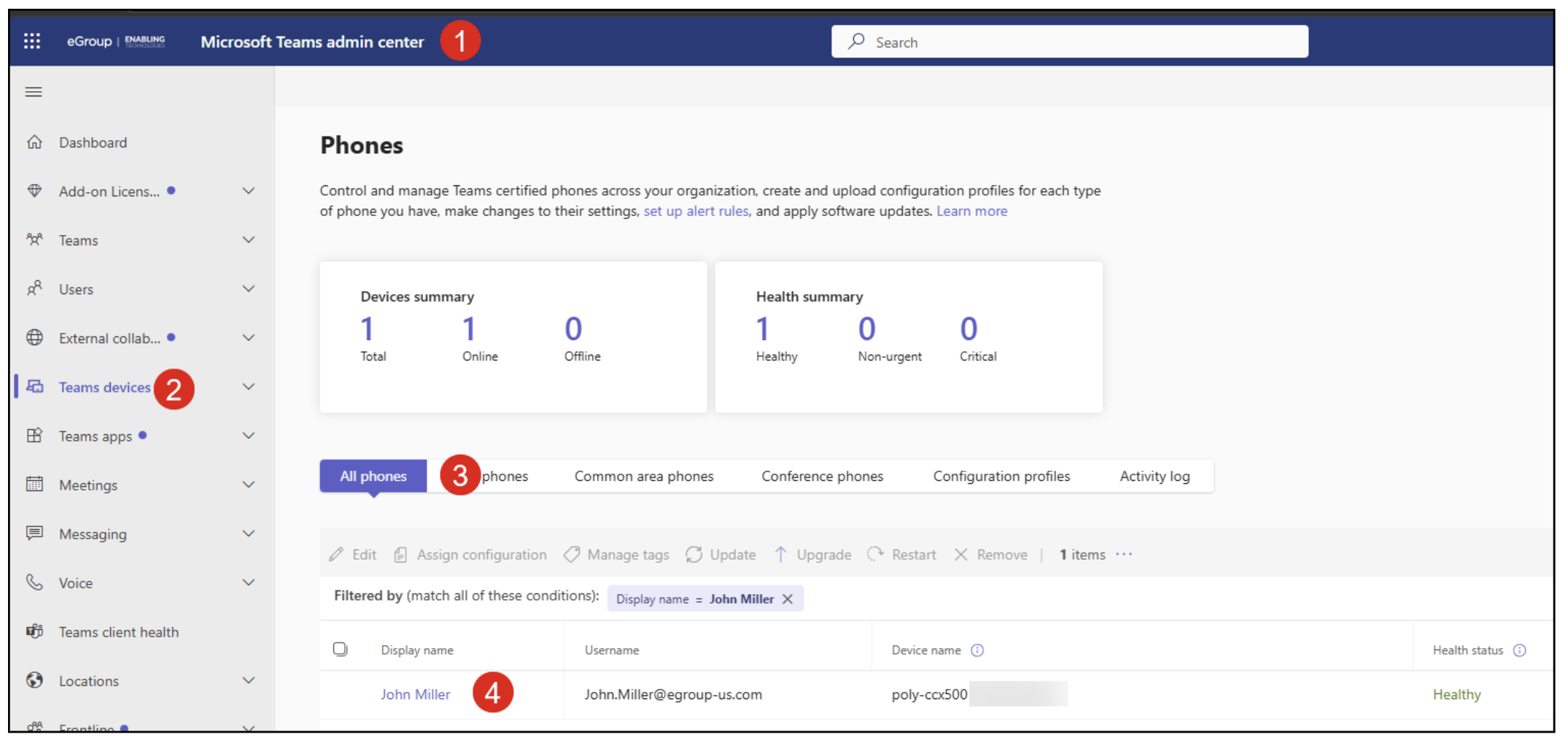
- Sign into the Teams Admin Center (TAC).
- Click on “Teams Devices”.
- Click on “All Phones”.
- Click on the “Display Name” of the phone you would like to check.
- Verify that the “Current Version” of the “Teams Admin Agent” is at least “1.0.0.202606082157.product”.
- Microsoft should have automatically updated the “Teams Admin Agent” on the phone.
- Phones that aren’t currently signed in should get the update.
- Offline phones will not get the update.
- This includes the phones still in boxes on a shelf in your storeroom!
Checking The Version In Bulk
- Click the “Excel” icon.
- Click the “Download” icon.

- When ready, click the “Download” link and save the CSV file.

- Open the CSV and locate the column named “Teams Admin Agent Version”.
- Identify all phones that do not have the correct version of the “Teams Admin Agent”.
- The phone in the example did not get updated because it was “Offline”.


Accessing the Teams Rooms Pro Management Portal
Public/EDU/GCC Tenants URL
https://portal.rooms.microsoft.com
GCCH Tenant URL
https://devices.gov.teams.microsoft.us
DoD Tenant URL
This is what the Home page of the portal looks like:
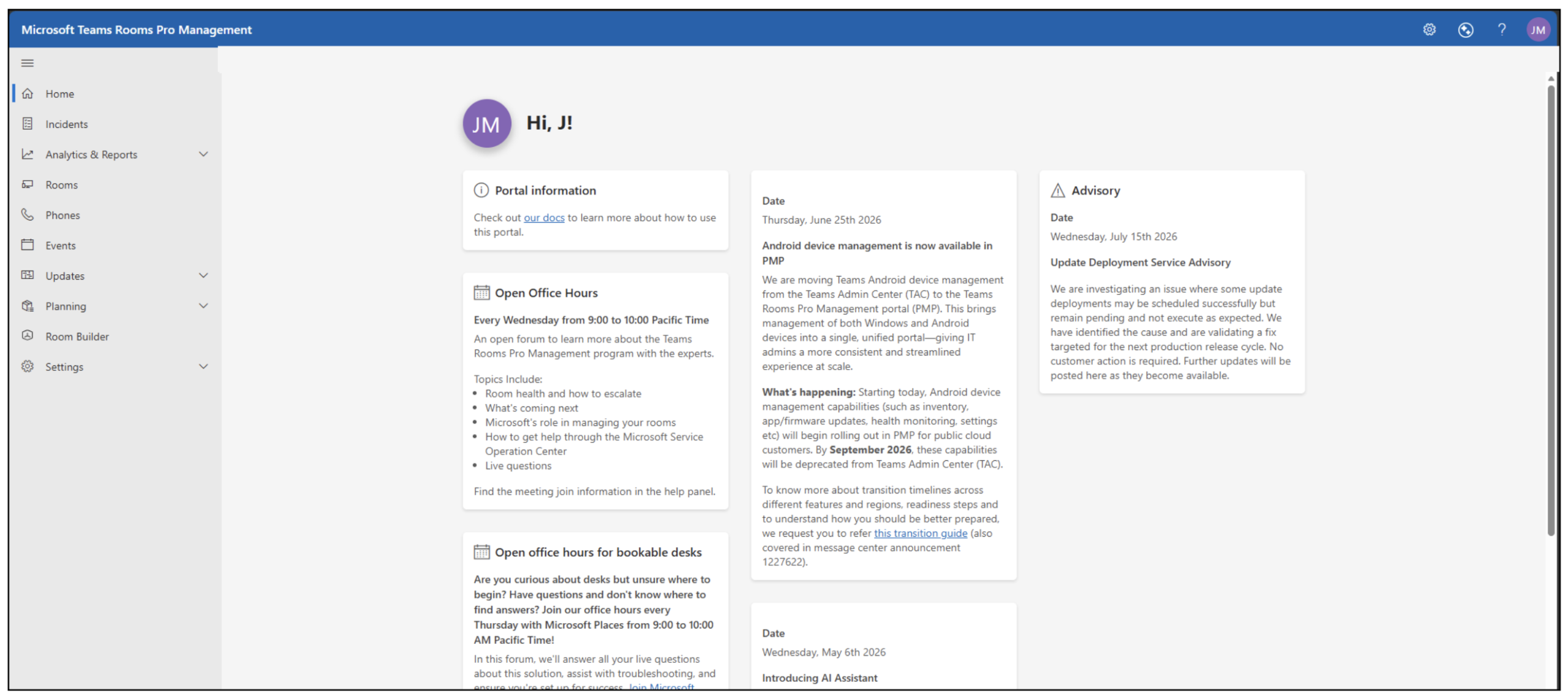
If you click on “Phones”, you should see all of your phones that were online in the TAC and have the updated “Teams Admin Agent”:
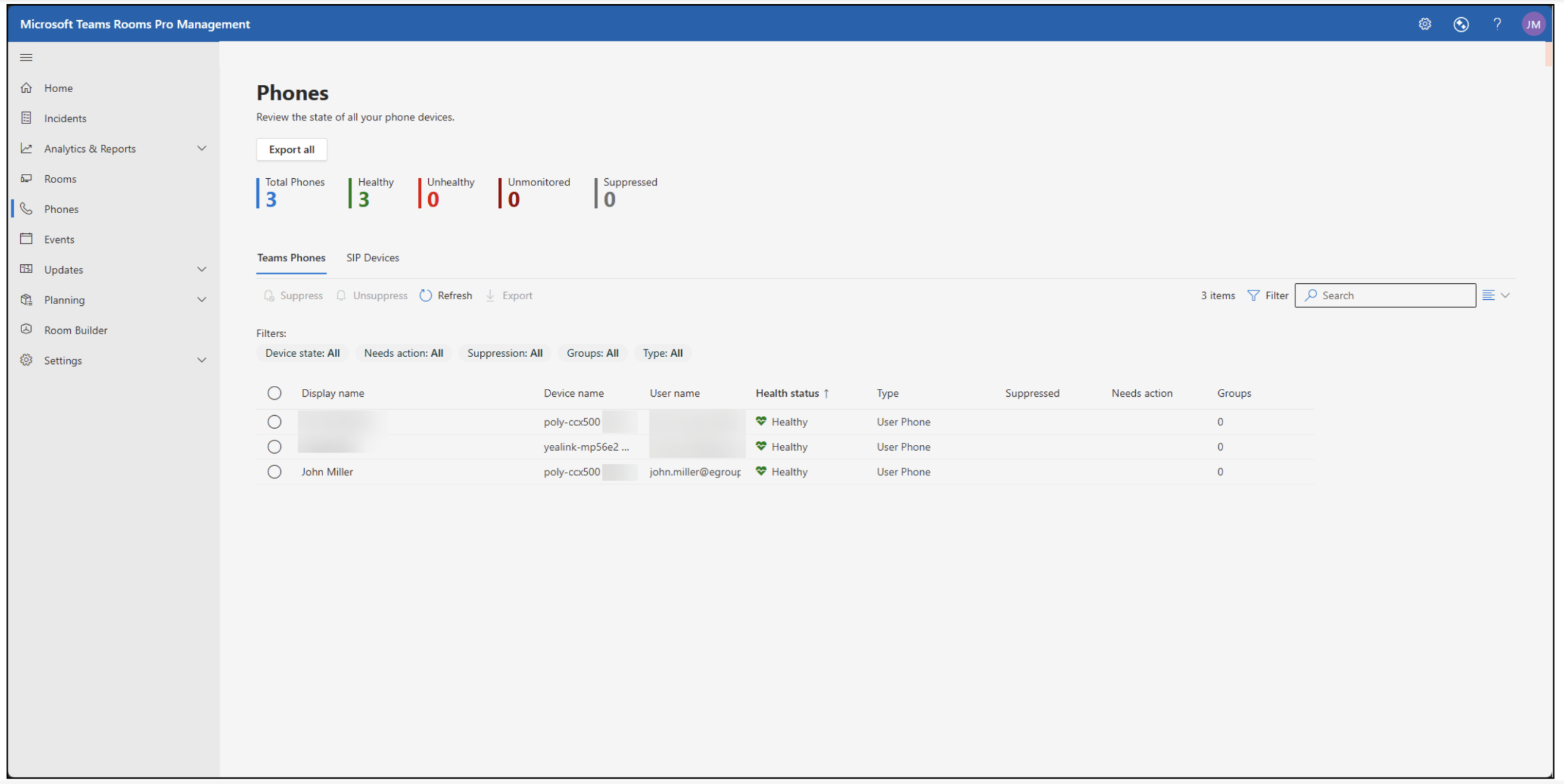
At the time of writing this article, a lot of the functionality for the phones was partially or not working at all. To avoid any confusion, consternation, or frustration, we are not going to delve further into managing phones in the PMP currently. Stay tuned for future articles that will describe the available functionality for Teams phones in the portal.
Post Migration Tasks & Hints
The migration of Teams Device management from the TAC to the PMP is happening gradually over the next few months. The feature migration for some tenants will finish sooner than for others. At some point, you should be able to perform the following tasks in the PMP. Currently, we are unable to complete these tasks in the eGroup PMP. We are checking the portal regularly and will perform these when we can. The same will be true in your organization. There may be challenges, but all we can do is recommend patience.
Settings
- You will be able to migrate your TAC “Configuration Profiles” into the PMP. They will come in as “Templates” and should be under “Settings->Device Settings”.
- You will be able to make changes to specific phones. You will not need to have a “Template” with the configuration for a single phone!
Update Management
- If your updates were disabled/paused in the TAC, they will continue to be disabled/paused in the PMP.
- Instead of the TAC Update phases of Validation, General and Final, the PMP uses the “Rings” concept.
- The TAC update phases will remain in effect until the Rings are configured in the PMP. If your phone was set to the “General” phase schedule in the TAC for updates, it will remain so in the PMP until the Rings are ready.
- All updates in the PMP occur during the nightly maintenance window. The PMP window is between Midnight and 5:00 AM daily. Custom maintenance windows are not currently supported.
- Please refer to Transitioning updates management for Teams Android Device from Teams Admin Center to the Teams Rooms Pro Management Portal – Microsoft Teams | Microsoft Learn to learn more about managing updates in the PMP. Please stay tuned to our blog for guidance on Rings and device updates in the PMP.
Tags
If you are using “Tags” in the TAC with the phones, they will be carried over to the PMP as “Groups”. This feature is not implemented yet, and Microsoft has not provided any estimate as to its availability.



Teams Rooms Pro Management Portal (PMP) Guidance & Documentation
There is a video included in the Transitioning Teams Android Device Management from Teams Admin Center to the Teams Rooms Pro Management Portal – Microsoft Teams | Microsoft Learn article that describes many of the features available in the PMP.
Here are several more reference links about the PMP:
- Overview: Teams Rooms Pro Management
- Features: Teams Rooms Pro Management Playlist
- Documentation: Microsoft Teams Rooms Pro management – Microsoft Teams | Microsoft Learn
Summary
The migration to the new management experience for Teams Android phones and devices is underway. Organizations need to prepare the Teams Rooms Pro Management Portal before Device Management is deprecated in the Teams Administration Center. Microsoft will be shutting this down in September 2026. Teams Phones must have the required version of the Teams Administration Agent installed on them before the TAC Device Management is deprecated. Microsoft is in the process of rolling out the management features for the devices into the PMP. This will take some time and will require patience on the part of Teams administrators.
eGroup is available and ready to assist your organization and answer any questions you have about the TAC to PMP migration for Teams Android Devices. If you need help with Microsoft Teams, Teams Voice, Dynamic 911 or Teams devices, please reach out to us.


Prepare Your Teams Devices Now
eGroup can help you evaluate your Teams device estate, validate PMP readiness, and build a secure transition plan before TAC management workflows are retired.