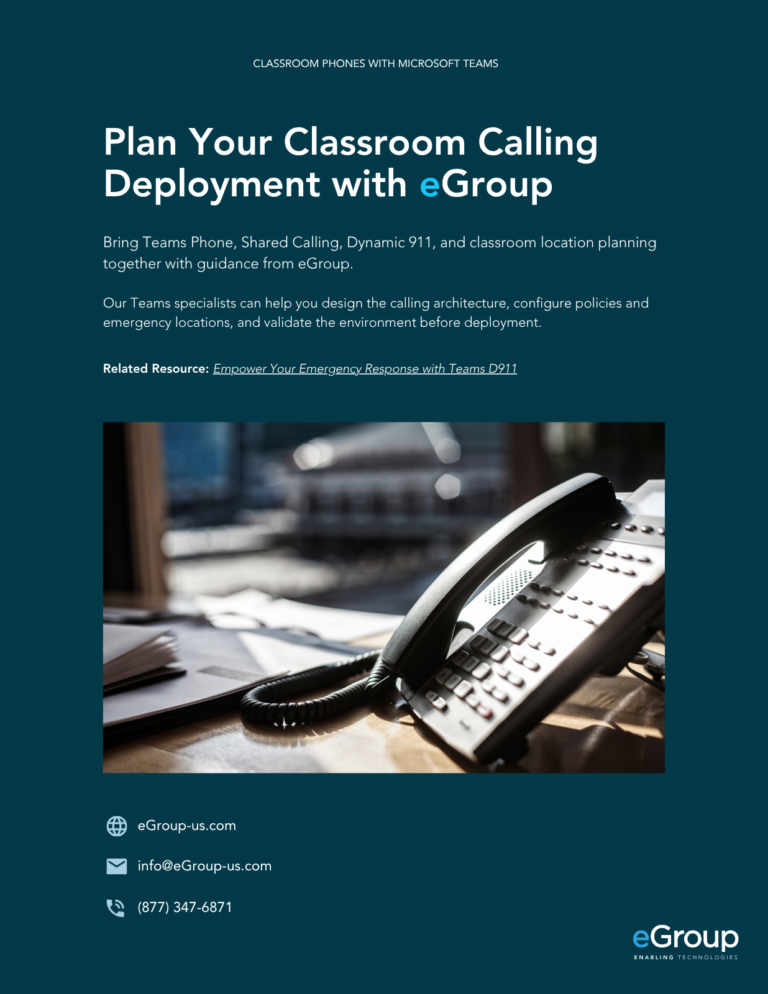
Setting Up Classroom Phones with Microsoft Teams Shared Calling
Instant access after form submission
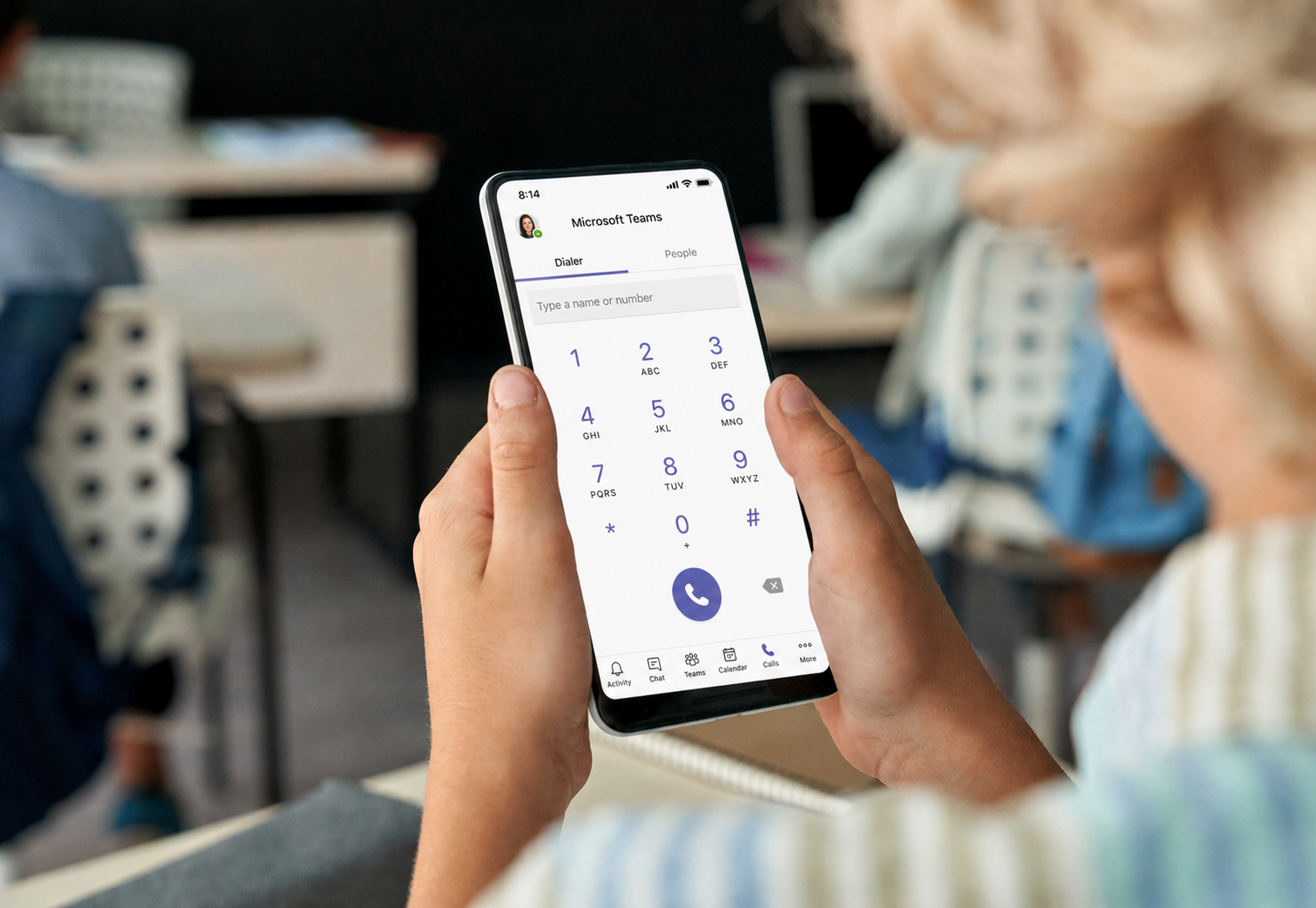
Classroom Calling
Why Classroom Phones Need a Different Teams Voice Strategy
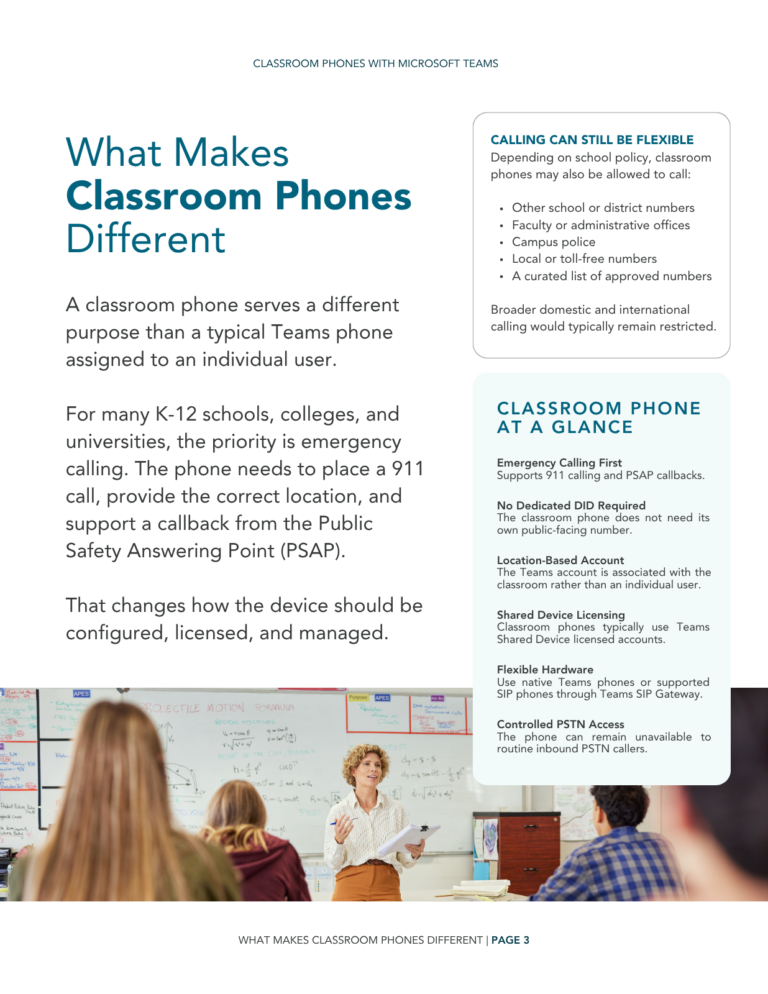
Classroom phones have very different requirements from phones assigned to individual Teams users. Their primary purpose may be emergency calling, while direct inbound PSTN calls are often unnecessary or disruptive.
A successful configuration needs to balance several requirements:
- Support reliable 911 calling
- Allow PSAP callbacks after an emergency call
- Prevent unwanted inbound PSTN calls
- Provide accurate classroom location information
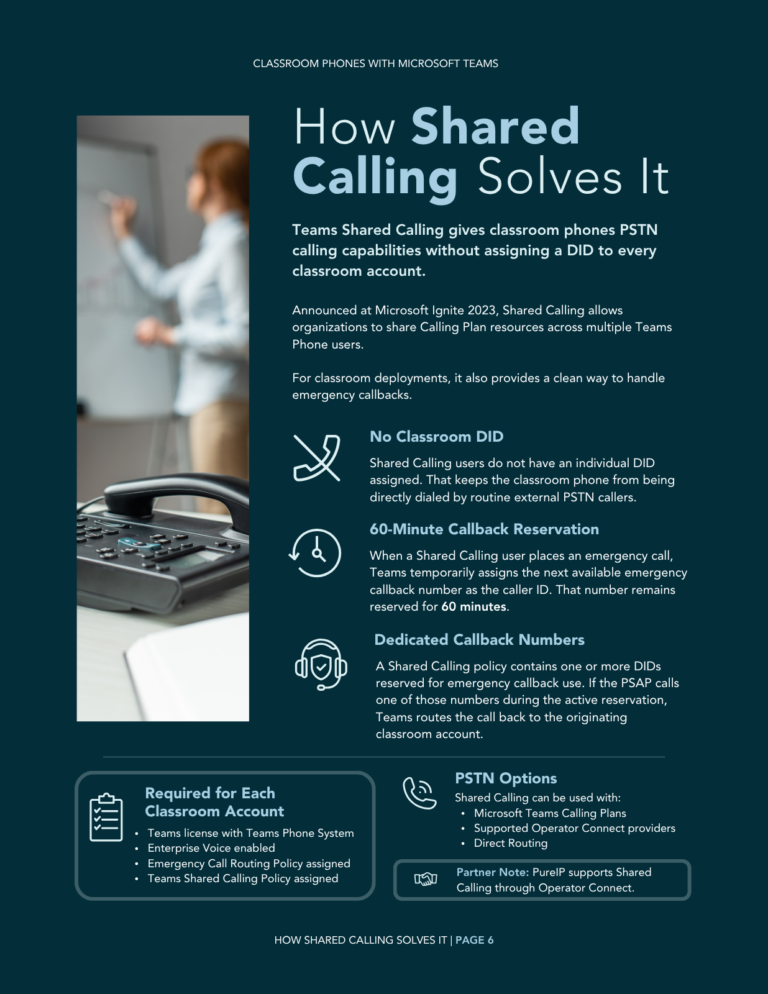
Emergency callback numbers are dynamically reserved and released per PSAP session
Dedicated emergency callback numbers can support each Shared Calling policy

What’s Inside This eGuide?
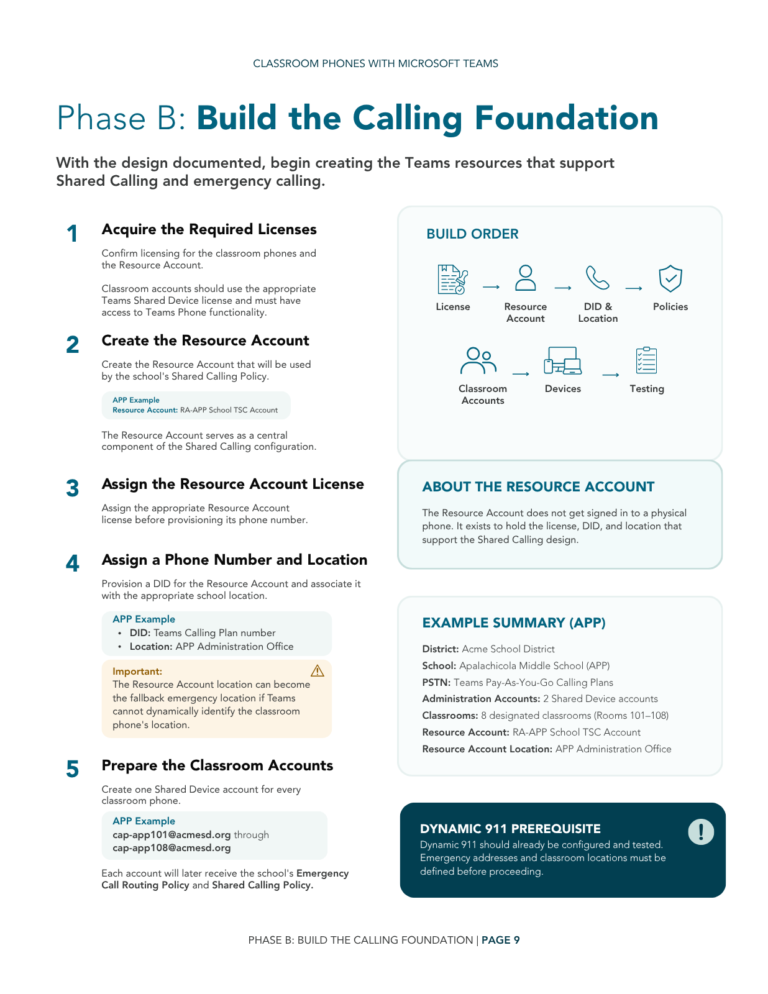
Configure Teams Shared Calling from Policy to Classroom Phone
This guide walks through the Teams configuration, emergency calling requirements, and network considerations involved in deploying classroom phones across K-12 and higher education environments.
Inside, you’ll learn how to:
- Configure Teams Shared Calling for classroom phones
- Create and assign resource accounts and Shared Calling policies
- Set up emergency callback numbers for PSAP callbacks
- Configure Emergency Call Routing Policies for 911 and 933
- Assign Shared Device accounts and required policies
- Connect Teams Dynamic 911 locations to network ports
- Test emergency calling before deployment
- Maintain location accuracy as devices and network connections change
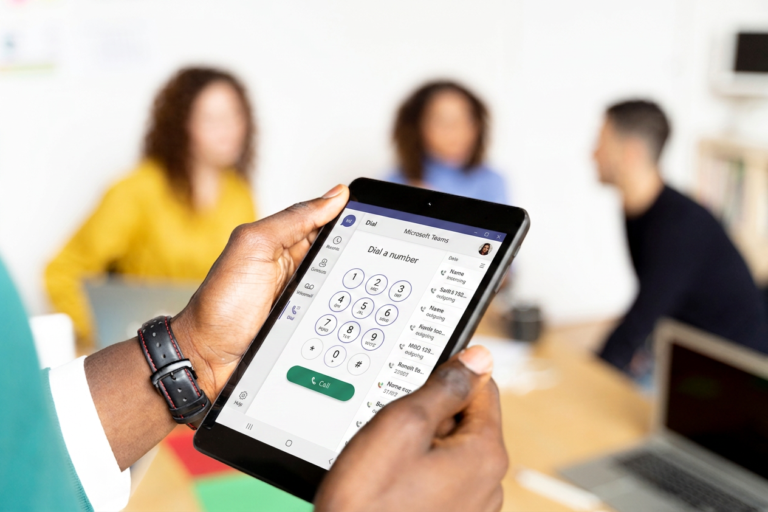
Teams Shared Calling
Support PSAP Callbacks Without a DID for Every Classroom
Assigning every classroom phone its own DID can create an unwanted side effect: outside callers can potentially reach phones during instruction.
Teams Shared Calling provides another approach.
Classroom phones can operate without individually assigned DIDs while a dedicated pool of emergency callback numbers supports PSAP callbacks. When an emergency call is placed, Teams temporarily maps an available callback number to the originating classroom phone.
- Reduce the need for individual classroom DIDs
- Prevent direct external dialing to Shared Calling users
- Provide PSAPs with a valid callback number
- Route eligible callbacks to the original classroom phone
Emergency callback numbers support Shared Calling users during 911 calls.
Callback numbers remain reserved for original callers for 60 minutes.
Individual DIDs are not required for classroom Shared Calling users.

Dynamic 911
Make Sure Emergency Calls Report the Right Classroom
A classroom phone can be powered on, signed into Teams, and able to place calls while still providing the wrong emergency location.
Teams Dynamic 911 can use network information, including the switch and switch port connected to a phone, to determine its location. Proper Teams Location Information System (LIS) records are critical when room-level accuracy is required.
The guide shows why teams should:
- Map connected switch ports to the appropriate Teams location
- Maintain LIS records for cross-connected data jacks
- Validate classroom locations with 933 testing
- Test 911 calling as part of deployment
- Control phone moves that could affect location accuracy
Is Your 911 Location Accurate?
If a classroom phone is moved to a network connection without the proper LIS record, Teams may provide the fallback location associated with the Shared Calling configuration instead of the classroom where the emergency originated.

Who Should Read This?
Built for Teams, Voice, and Network Teams in Education
- K-12 school district IT teams
- College and university technology teams
- Microsoft Teams and Microsoft 365 administrators
- Unified communications and voice teams
- Network engineers responsible for switches and port mappings
- IT leaders planning Teams Phone deployments
- Teams responsible for emergency calling and Dynamic 911

Operational Readiness
Keep Classroom Phones Ready When They’re Needed
Deployment is only part of the classroom phone strategy. Emergency location accuracy and device availability depend on ongoing coordination between Teams administrators, network teams, and operational processes.
The guide outlines five key controls:
-
Physically Secure Phones
Help prevent classroom phones from being moved to unintended network connections. -
Maintain LIS Port Records
Add the appropriate Teams LIS record whenever a data jack is cross-connected to a switch. -
Formalize MACD Processes
Account for emergency calling when network connections are moved, added, changed, or deleted. -
Control Classroom Phone Moves
Require Teams or network oversight before relocating phones, including moves within the same room. -
Monitor Device Health
Track whether classroom phones remain powered, signed in, and available for emergency use.