


Prepare your Teams Phones for the move, learn how update rings work, and see how to manage updates in the Microsoft Teams Rooms Pro Management portal.

Microsoft is moving Teams Phone update management from the Teams admin center (TAC) to the Microsoft Teams Rooms Pro Management portal (PMP). Before Microsoft retires the phone-update controls in TAC, make sure every phone has a supported Teams Admin Agent. In this article, I’ll explain how the move works, what you need to check, and how to use update rings to test and deploy updates to your phones.
Key Points
- Minimum agent version: Commercial tenants require Teams Admin Agent version 830 (1.0.0.202606082157). GCC, GCC High, and DoD tenants require version 856 (1.0.0.202607160723). If a phone is running an older version, update it before Microsoft retires TAC-based phone updating.
- Moving to PMP: Phones that meet the minimum agent requirement should appear in PMP and remain visible in TAC. Check that every phone you need to manage appears in PMP.
- Managing updates: After the required agent is installed, use PMP to manage app and firmware updates. Review any updates waiting to be installed and confirm each phone’s update ring.
- Assigning update rings: General is the default ring. You currently have to change ring assignments one phone at a time. I recommend placing actively used phones that represent your common models and locations in the Staging ring.
- Update timing: PMP attempts active updates between midnight and 5:00 AM local time. You can configure up to 10 rings, but the full update cycle cannot exceed 60 days.
- Stored or inactive phones: Do not forget phones that are sitting in storage or are rarely used. Power them on, connect them to the network, sign them in to Teams, and update the Teams Admin Agent so they do not miss the move to PMP.


Prepare Teams Phones For The Pro Management Portal
How The PMP Migration Works
Teams Phones should appear in PMP after the Teams Admin Agent reaches the required version. Commercial tenants require version 830 (1.0.0.202606082157). GCC, GCC High, and DoD tenants require version 856 (1.0.0.202607160723).
The phones will remain visible in TAC after they appear in PMP. Microsoft is using TAC to push the required Teams Admin Agent, including to phones that have automatic updates disabled. During this transition, TAC is updating the Teams Admin Agent. After the required agent is installed, PMP takes over management of the other app and firmware updates.
The important point is simple: do not wait until the TAC controls disappear to find out that a stored or infrequently used phone missed the agent update.
Migration Readiness Checklist
- Identify all Teams Phones in your organization. Include phones that are actively used, stored as spares, or powered on only occasionally. If a phone must continue receiving updates, include it in your review.
- Verify the Teams Admin Agent version. Confirm version 830 (1.0.0.202606082157) or later for commercial tenants, or version 856 (1.0.0.202607160723) or later for GCC, GCC High, and DoD tenants.
- Prepare stored or inactive phones. Power them on, connect them to the network, and sign them in to Teams.
- Update phones below the required agent version. Use TAC to update them while TAC-based phone updating is still available.
- Make sure each phone appears in PMP. Confirm that every updated phone is available in PMP and remains visible in TAC.
- Review update status and ring assignment. Check pending app and firmware updates and confirm that each phone is assigned to the intended update ring.

Operational Alert: Update Stored and Inactive Phones
Risk: Teams Phones that do not meet the applicable minimum Teams Admin Agent version may be difficult to update after phone-update controls are retired from TAC.
Required action: Power on stored or infrequently used phones, connect them to the network, sign them in to Teams, and update the Teams Admin Agent. Confirm that each phone meets the applicable minimum version and appears in PMP.

Understand & Configure Update Rings In PMP
Ring Basics for Teams Phones
- PMP installs scheduled updates according to the update ring assigned to each device.
- The same ring system is used for Android Teams Phones, Teams Rooms on Windows, Teams Rooms on Android, Teams Panels, and Teams Displays.
- When a ring becomes active, PMP attempts to install the update on phones assigned to that ring between midnight and 5:00 AM local time.
- Update rings let you release an update to smaller groups first, test it, and then continue to wider groups of phones.
- This reduces the chance that an update causing problems will reach every phone at the same time.
- The complete update cycle across all rings cannot exceed 60 days.
- This approach mirrors the TAC update mechanism while providing more flexibility.
- TAC used three update windows:
- Validation: Devices received updates within 0–15 days of release.
- General: Devices received updates within 16–45 days.
- Final: Devices received updates within 46–60 days.
- Phones initially used the General option unless an administrator assigned another option directly or through a configuration profile.
- TAC also allowed administrators to change the default Sunday update window of 1:00–4:00 AM local time. Microsoft limited how many phones updated during each window. For example, if 100 phones used the Validation window, Microsoft could divide those installations across the two Sundays within the 15-day period instead of updating all 100 phones at once.
- PMP provides more control over the order and timing of update groups. You can configure up to 10 update rings.
Update Rings In PMP
- PMP includes three preconfigured rings that can be modified but cannot be deleted:

You can add more rings in addition to the three preconfigured rings. Each new ring includes five settings:
- Deployment Order: Determines where the ring appears in the update sequence.
- Name: Identifies the ring.
- Description: Explains which devices belong in the ring or how the ring should be used.
- Rollout Duration in Days: Sets the number of days PMP can use to install the update on phones assigned to the ring. A longer rollout period limits how many phones update each night.
- For the most reliable results, keep phones powered on, connected to the network, and signed in to Teams. A previously registered phone that is not currently signed in may receive some updates, but I would not rely on that behavior when preparing for the move to PMP.
- Test Period in Days: Sets the number of days you have to test the update after the rollout period ends. I recommend at least three days so the entire test period does not fall on a weekend or holiday.
PMP calculates two additional values:
- Deferment Period: The number of days PMP waits after the update is released before starting the ring. The first ring always starts with a deferment period of zero. Each later ring begins when the preceding ring reaches its completion time.
- Completion Time: The point when both the rollout and test periods for the ring are complete.
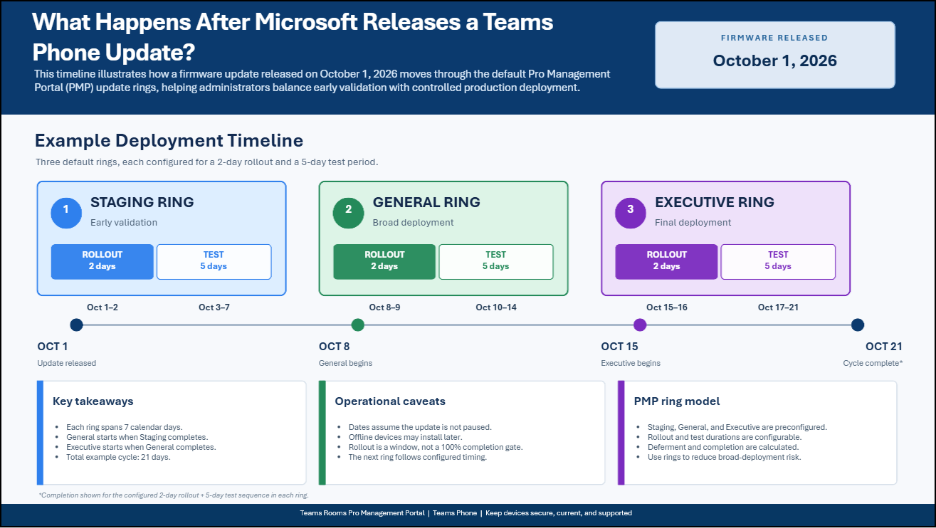
If Microsoft released an update on October 1, 2026, using the default rings it would have been applied to all available phones by October 21, 2026:
Recommendations For Ring Configuration
- The total completion time across all rings cannot exceed 60 days.
- When you configure the rings, decide how much testing your organization needs and how quickly you want phones to reach the same software versions.
- A longer test period gives you more time to find problems, but it also means that different groups of phones will run different versions for longer.
- The rollout period limits how many phones update each night. Setting a one-day rollout for a large number of phones can create a noticeable increase in network traffic.
- Assign phones that people actually use to the Staging ring. A phone sitting unused in a lab will not tell you whether an update affects everyday calling.
- Include common phone models, locations, and calling scenarios in the Staging ring.
- Ask the people responsible for testing those phones to place specific test calls after an update, or use a documented test plan.
- If testing finds a problem, pause the update before the next ring begins.
- You can find sample test numbers and calling scenarios at The Test Call website.
- The suggested ring configurations in this article are starting points. Adjust them to match the number of phones you manage, your available testing resources, and your tolerance for running different software versions at the same time.

Manage Teams Phone Updates In The Pro Management Portal
Review a Phone’s Pending Updates
- PMP can install updates automatically through update rings, or you can start selected updates manually. To review the update status for a phone, open the phone in PMP and select the Updates tab. This page shows updates waiting to be installed and updates that recently completed.
- Click on “Phones”.
- Click the specific phone.
- Click the “Updates” tab.
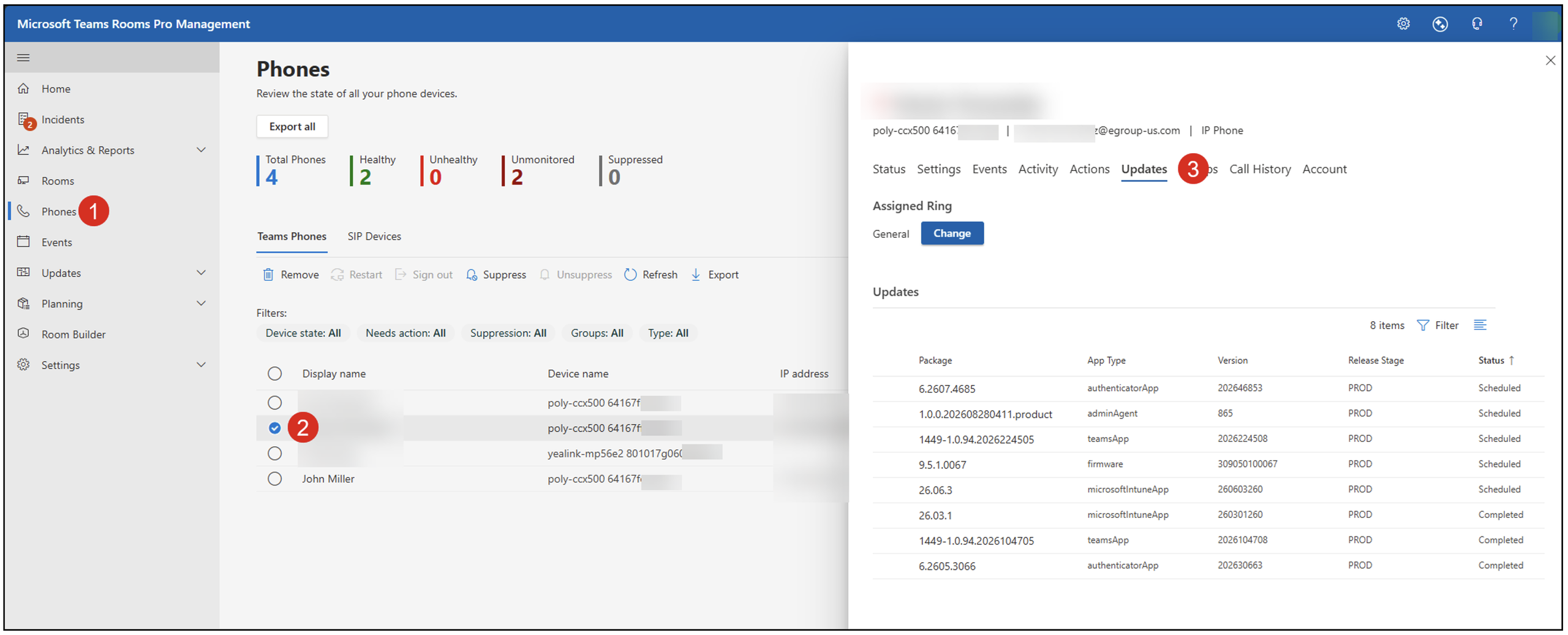
- Scheduled updates are updates that PMP has assigned to the phone through its update ring.
Change A Phone’s Update Ring
- The update ring determines when a Teams Phone receives an available update. General is the default ring.
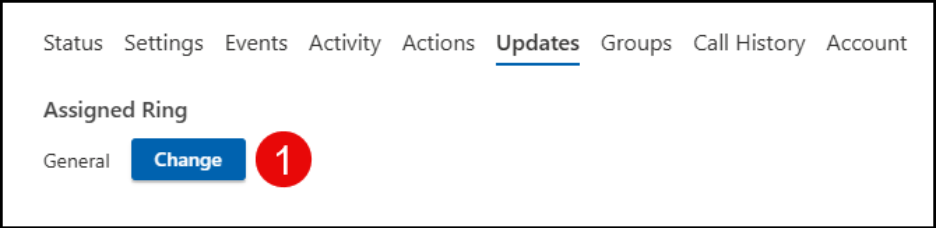
- On the phone’s Updates tab, you can see the currently assigned ring. Select Change to assign the phone to another available ring.
- PMP currently requires you to change ring assignments one phone at a time.
- On the “Updates” tab of the phone, click the “Change” button.
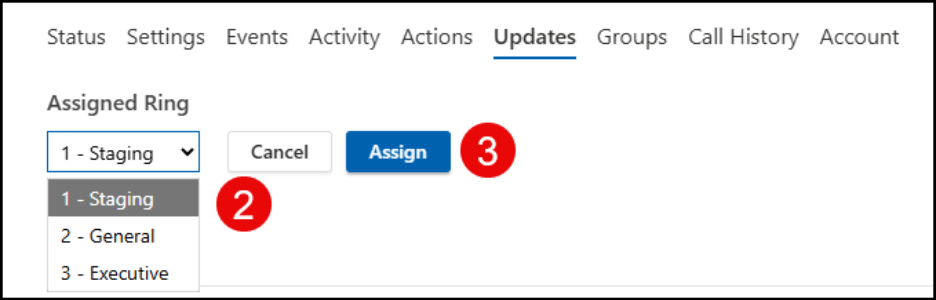
- Select a different ring from the drop-down.
- Click the “Assign” button.
Force Updates On A Phone
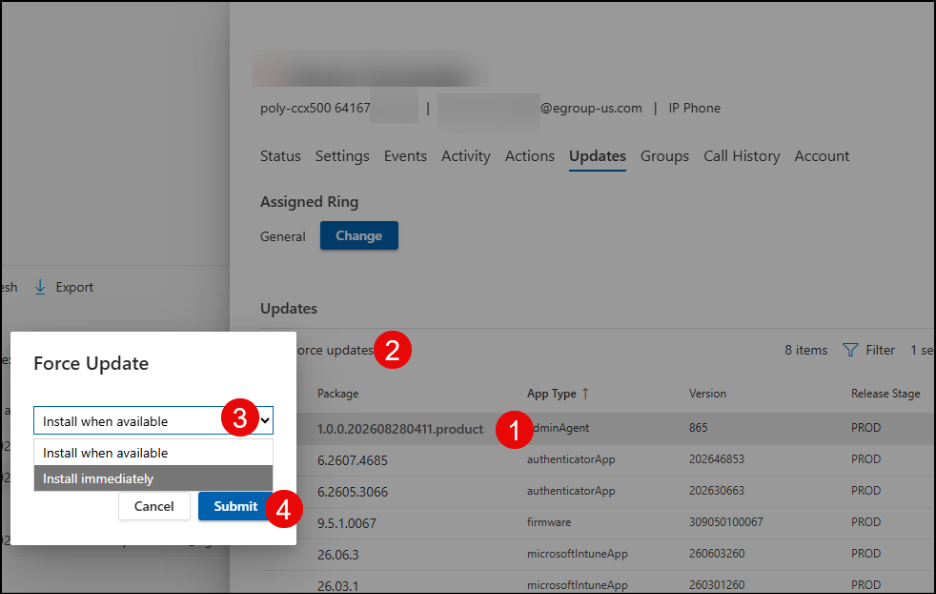
- If you need to install an update before its scheduled ring reaches the phone, you can start the installation manually.
- Select one or more updates. Select an item again to clear it; you do not need to use the Ctrl or Shift keys.
- Select Force updates.
- Open the drop-down menu and choose when PMP should install the update.
- Select Submit.
Monitor & Control Teams Phone Updates
Review The Update Summary
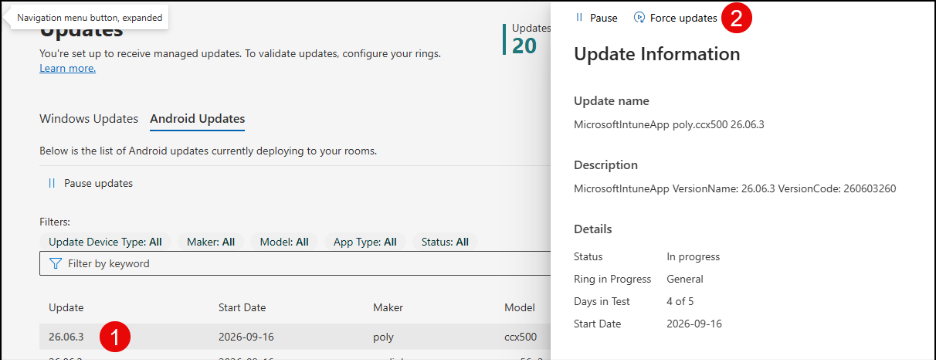
- The Update Management page shows updates that have completed, updates in progress, and updates scheduled for Teams Phones. To open it, select Updates, select Update Management, and then select Android Management.
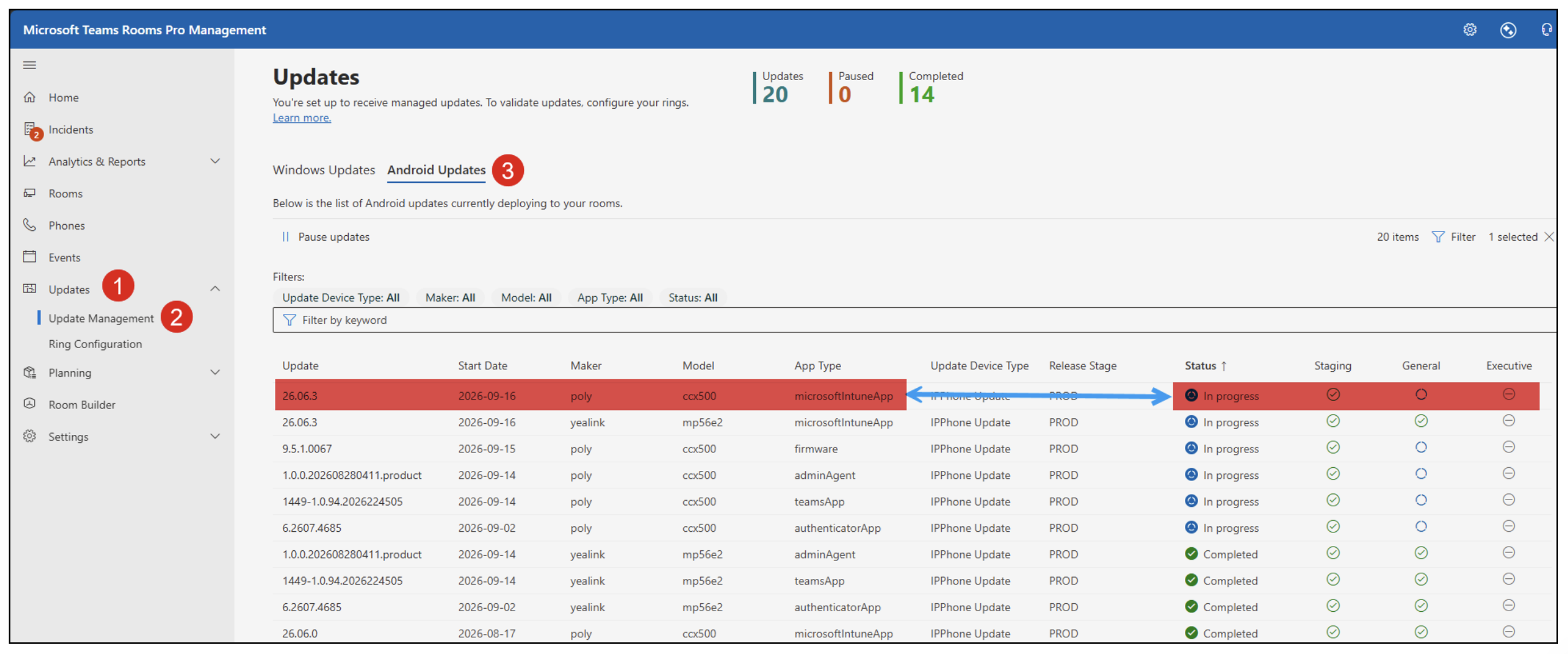
- The first row in the example shows an update that is still in progress:
- The update applies to all Poly CCX 500 phones shown in the portal, including phones receiving the update automatically and phones updated manually.
- The Microsoft Intune app is being updated to version 26.06.3.
- Installation began on September 16, 2026.
- Every Poly CCX 500 assigned to the Staging ring has been updated, but some phones in the General ring are still waiting.
- No Poly CCX 500 phones are assigned to the Executive ring.
- The next row shows that the same update has completed on all Yealink MP56E2 phones.
View Update Details
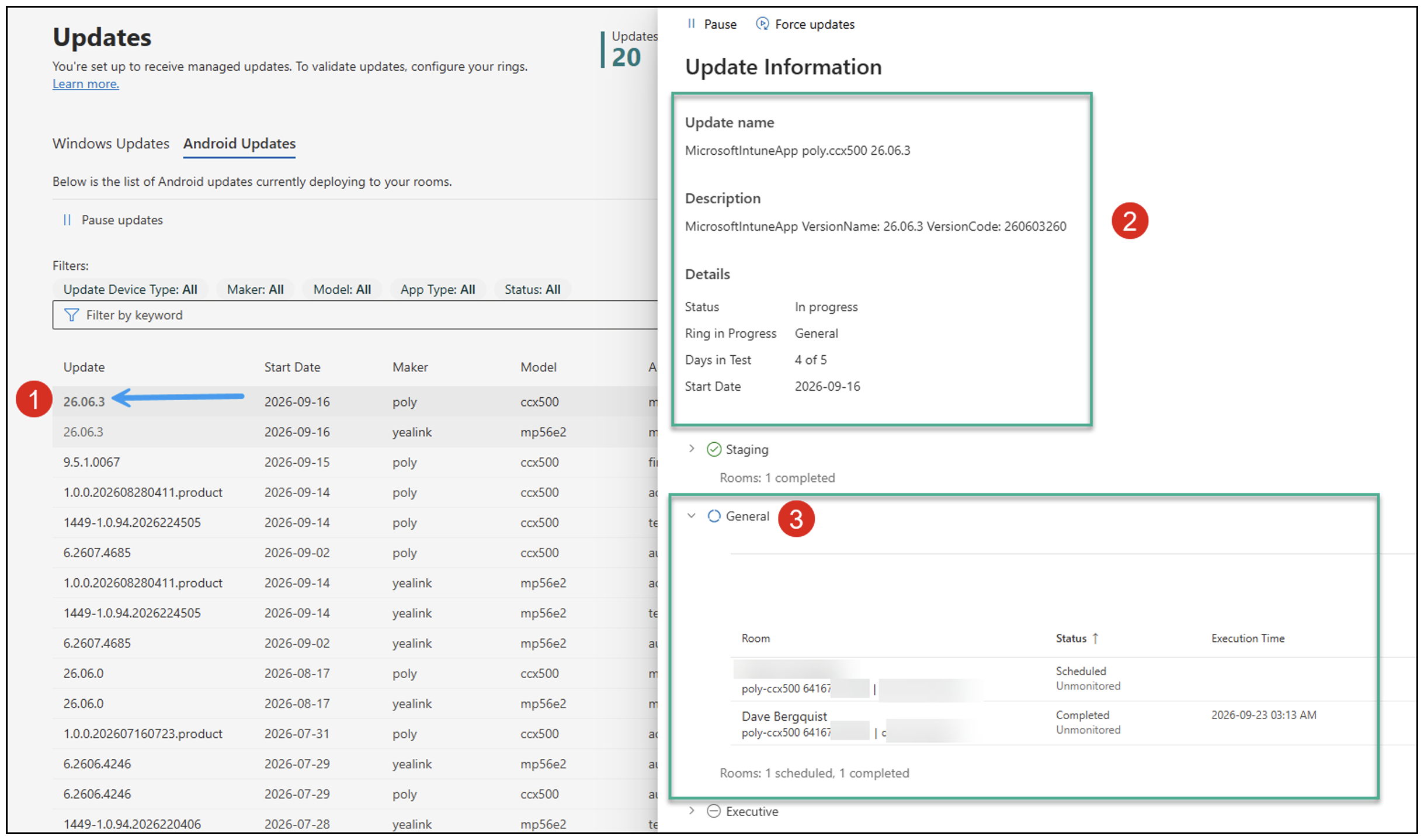
- Select an update to see more information about its progress.
- Select the update.
- Review the detailed update information.
- Select a ring tab, such as General, to see the status of each phone assigned to that ring.
Pause A Specific Update
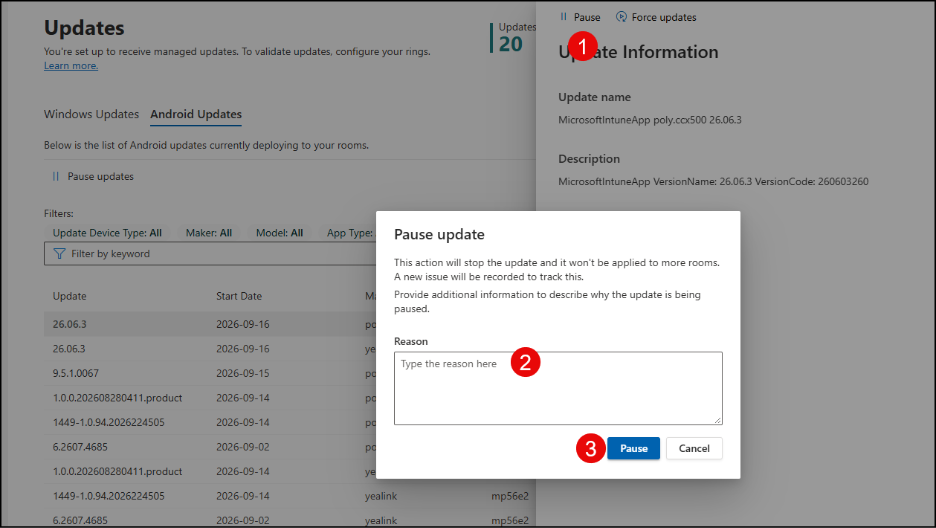
- If testing identifies a problem, you can pause that update without pausing every update in PMP.
- Locate the update and select Pause.
- Enter a reason for pausing the update.
- Select Pause again to confirm.
- After the update is paused, the Pause button changes to Resume.
Force a Specific Update
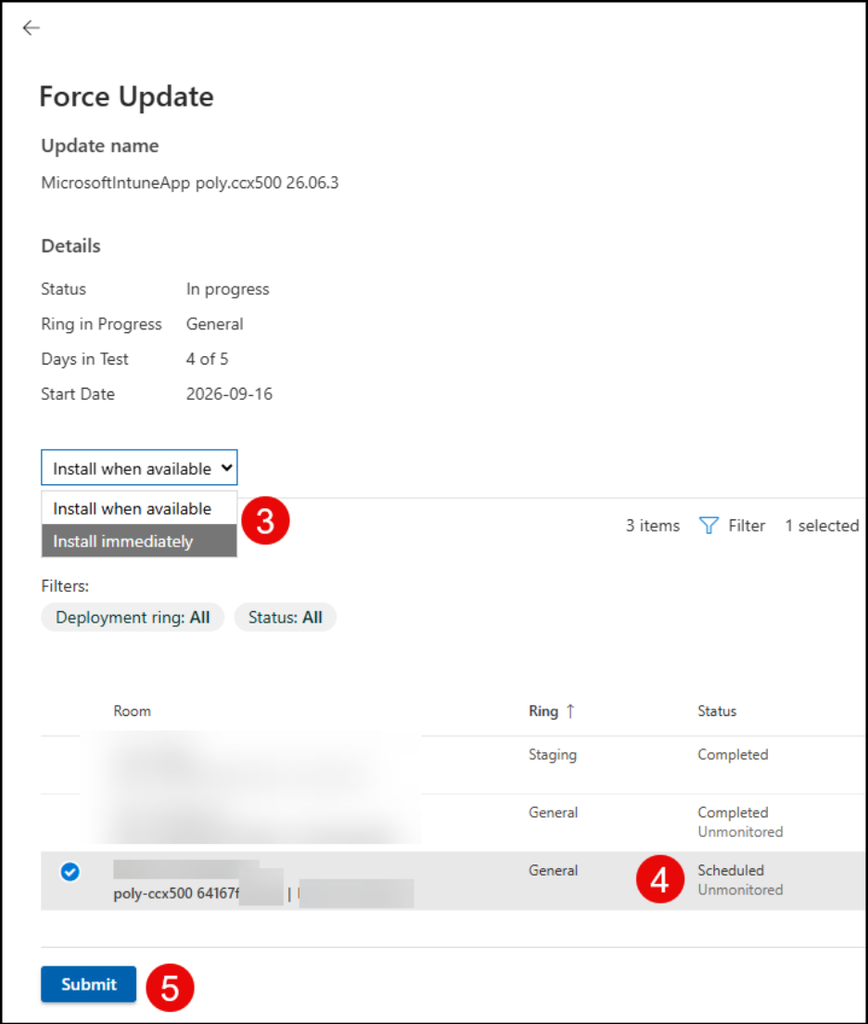
- Select the update.
- Select Force updates.
- Open the drop-down menu and choose when PMP should install the update.
- Select one or more scheduled phones. Select a phone again to clear it; you do not need to use the Ctrl or Shift keys.
- Select Submit.
Pause All Pending Updates
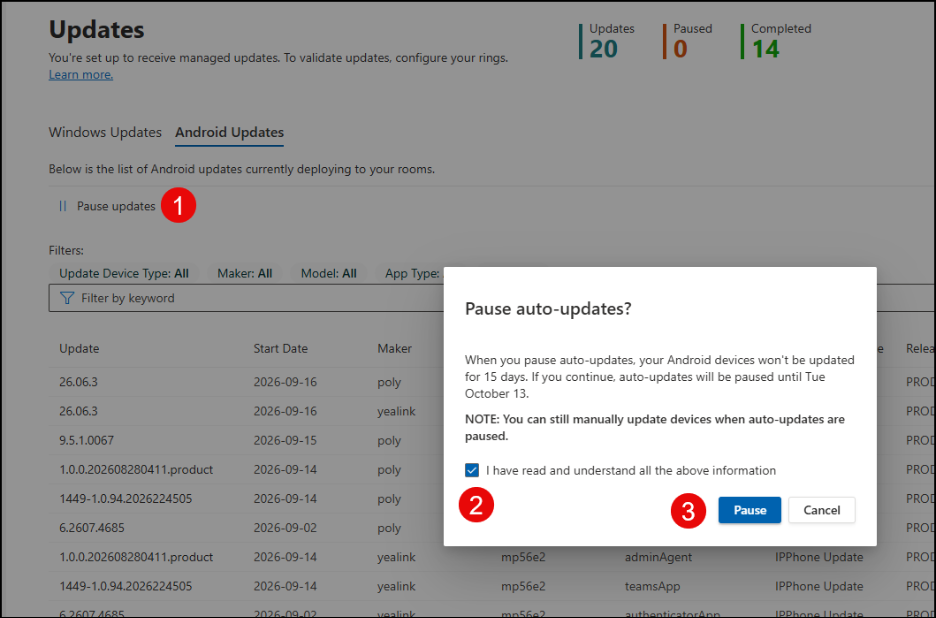
- You can also pause all automatic updates that are waiting to be installed. Use this option carefully because it affects more than one update.
- Select Pause updates.
- Select the confirmation checkbox.
- Select Pause.
Key Takeaways
- Update stored and infrequently used phones before Microsoft retires TAC-based phone updating.
- Confirm that every phone you need to manage appears in PMP and remains visible in TAC.
- Put actively used phones that represent your common models, locations, and calling scenarios in the Staging ring.
- Give yourself enough time to test updates, but remember that the full update cycle cannot exceed 60 days.
- Do not assume that a phone will update successfully if it is powered off, disconnected, or not signed in.
Need help preparing your Teams Phone environment for PMP or deciding how to configure your update rings? eGroup can review your current setup, identify phones that may miss the transition, and help you build an update process that fits your organization.

Keep Your Teams Phones Ready
Prepare your Teams Phone environment for the move to the Pro Management portal. eGroup can help you evaluate device readiness, plan update rings, and maintain reliable calling through ongoing device management.