
Educational institutions have distinct calling requirements across administrative offices, faculty, classrooms, shared spaces, and emergency devices. Learn how user personas and operational use cases shape Microsoft Teams Phone licensing, devices, routing, and resiliency decisions.


Introduction
Before continuing, please bear in mind that what follows are generalizations. They reflect our experiences with a myriad of commercial, education, and government clients. There are certainly elements described that don’t apply to your organization and others that are not addressed. We look forward to working with all organizations that would like to take advantage of the features and benefits of Microsoft Teams and Teams Phone, so please don’t think that your organization’s requirements preclude installing Microsoft Teams Phone. We would welcome the opportunity to do some discovery in your environment and provide a recommendation, which may or may not include Teams Phone.
A successful Teams Phone design starts with understanding the organization’s user personas. These personas represent groups such as information workers, salespeople, executives, and frontline or factory workers, each with distinct telephony requirements.
Key persona requirements typically include:
- Endpoints: Will the user rely on the Teams desktop client with a headset, a native Teams phone, or another device?
- Calling Permissions: Is the user permitted to make local, domestic, or international calls?
- Delegation: Will the user act as a delegate, a delegator, or neither?
- Call Flows: Will the user participate in a call queue, receive calls from an auto attendant, or support another call-routing workflow?
- Main Number & Reception: How will inbound calls to the organization’s main number be answered and routed?
- Other Requirements: Are there role-specific needs that require additional devices, policies, or call-routing configurations?
Persona discovery often reveals unique requirements for one or more user groups that should be addressed in the final Teams Phone design.
After completing the persona review, we are usually able to determine that the different requirements among these can easily be addressed in Teams Phone.
Once the discovery phase of an engagement is completed, we create a recommendation and design on how to implement Teams Phone. We advise the client on which of the flavors of Teams Phone would be best for them: Calling Plans, Operator Connect, or Direct Routing. We rarely recommend that an organization implement more than one of these.
We occasionally will include a recommendation to install non-Teams SIP Phones registered to on-premises Session Border Controllers in addition to the Teams Phone solution.
Why Educational Institutions Require A Different Approach
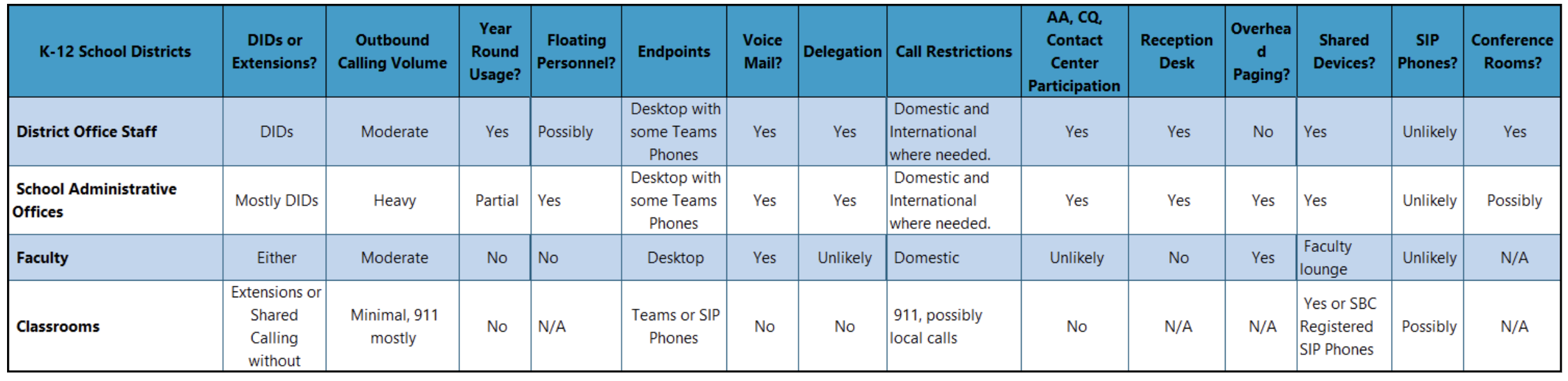
Educational institutions are different. In K-12 school districts, we find there are usually four (4) very different user types or “use cases”. In higher education, we usually discover six (6) different use cases. The differences in these types are more significant than those of the personas we find in commercial organizations.
When we create the Teams Phone recommendation for an educational institution, we usually end up creating very discrete recommendations for each of the types or “use cases”. Within each of these “use cases,” it’s not uncommon for us to find specific personas. For example, among a School District Office or the Non-Academic Offices at a college, we almost always find executives who require delegation, typical information workers, and some users who will use the Teams Desktop client and others who will be assigned a Native Teams phone.
Understanding these “use case” requirements of educational institutions is critical to being able to recommend and deliver a solution that meets the organization’s objectives.


K-12 School Districts
District Offices and Facilities
Staffing and User Profile
- District offices are generally open and staffed year-round.
- Users typically work in administrative, operational, or support roles.
User Calling Requirements
- Most users have direct inward dial numbers and voicemail.
- Domestic calling is typically permitted, while international calling may be limited to specific personnel.
- Some users may require delegation or configurable line keys.
Devices and Workspaces
- Most users rely on the Teams desktop client with a headset rather than a native Teams phone.
- District offices may include Shared Devices, particularly in reception areas, hoteling spaces, or other district facilities.
- SIP phones are uncommon in district offices.
- One or more Teams-equipped conference rooms may also be available.
Call Handling
- Overhead paging is generally not required in district office environments.
- Users may participate in Teams auto attendants, call queues, or contact center workflows.
- A reception desk typically handles general inbound calls.
School Offices
Individual schools typically have offices that support a range of personnel and functions, including:
- Principal and assistant principal
- Main office staff
- Guidance counselors
- School nurses, psychologists, and therapists
- Maintenance and janitorial staff
- Faculty offices or lounges
High schools generally have larger office staffs than middle or elementary schools, and some personnel may not work year-round.
Staffing and User Profile
School office users typically function like information workers in commercial organizations, although they often receive a higher volume of calls from parents. Most users have direct inward dial numbers assigned to their accounts.
Some personnel may work across multiple schools. These users typically carry a district-provided laptop or Surface and use Teams from different school locations or the district office.
Calling and Voicemail
- Teams accounts may use Calling Plans, Pay-As-You-Go, Operator Connect, or Direct Routing.
- Most users have voicemail.
- Functional voicemail boxes may be used for departments or groups such as physical education, maintenance, or janitorial services.
- Some users may require delegation or configurable line keys.
Devices and Mobility
- Users typically rely on the Teams desktop client with a headset or a native Teams phone.
- Staff who move between schools may sign in to hot desk-capable phones at each location.
- Users without individual Teams accounts, such as some maintenance or janitorial personnel, may use Shared Devices with functional phone numbers.
- SIP phones are uncommon in school offices.
- Some schools may also have a Teams-equipped conference room.
Call Handling and Shared Services
- Main office staff typically answer calls to the school’s main number through a Teams auto attendant and call queue.
- Schools generally have few additional auto attendant or call queue workflows beyond the main office.
- Many schools use overhead paging systems, which may be integrated with Teams.



School Faculty
Staffing and Work Patterns
- Most faculty members do not work year-round.
- Substitute teachers may require different levels of Teams Phone access depending on district policy and the length of their assignment.
- Teachers typically set their Teams presence to Do Not Disturb while teaching or completing focused work.
Devices and Access
- Teachers typically use district-provided laptops or Surface devices with the Teams desktop and mobile clients.
- Faculty members without a dedicated office or desk usually do not need a physical phone.
- Teams accounts may use Calling Plans, Pay-As-You-Go, Operator Connect, or Direct Routing. Shared Calling may also be appropriate for some users.
Calling and Voicemail
- Teachers typically have voicemail.
- Outbound calling is usually limited to domestic numbers, although some districts may restrict teachers to local calling.
- Teachers are generally not configured as delegates or delegators and are rarely assigned to call queues or contact center workflows.
Parent Communication and Call Handling
- A teacher’s need for a direct inward dial number depends largely on how the school wants to manage communication with parents.
- Schools may assign a DID that allows parents and other external callers to reach the teacher directly. Teachers can share this number at their discretion.
- Alternatively, schools may assign an internal extension or use Shared Calling without providing a dedicated DID.
- In these cases, parents can call the school’s main number or a dedicated teacher line and use a dial-by-name call flow to reach the appropriate faculty member.
Classrooms
Primary Calling Requirements
- Most classrooms have a physical phone primarily for making emergency calls and receiving callbacks from public safety answering points.
- Classroom phones may be restricted from calling other public switched telephone network numbers.
- They may also support calls to and from the school office or district office.
- Calling between classrooms or schools is less common.
- Most classroom phones are not used year-round.
Devices and Number Assignment
Classroom phones may be deployed in several ways:
- Native Teams phones signed in with a Teams Shared Device account
- SIP phones connected through the Teams SIP Gateway and signed in with a Teams Shared Device account
- SIP phones registered directly to one or more on-premises Session Border Controllers without a Teams account
A classroom phone may be assigned either a direct inward dial number or an internal extension. Phones with DIDs can receive calls directly from external callers.
Teams Shared Calling may also be used to provide calling capabilities while reducing the need for individually assigned phone numbers or calling plans.
Connectivity and Resiliency
- Teams accounts may use Calling Plans, Pay-As-You-Go, Operator Connect, or Direct Routing.
- Direct Routing deployments may include one or more Survivable Branch Appliances to provide limited calling resiliency during a Teams service or internet outage.
- Some Teams phone models can switch to SIP mode during an outage when used with Direct Routing.
- SIP phones registered directly to a Session Border Controller typically do not require a user to sign in.
Paging and Call Handling
- Many school districts continue to use classroom paging systems, which can supplement phones during emergencies.
- Paging capabilities vary, and some systems support two-way communication.
- Classroom phones and their associated accounts are generally not included in auto attendants, call queues, or contact center workflows.


Higher Education: Colleges & Universities
Non-Academic Offices
Non-academic offices may include the president’s office, admissions, the bursar, registrar, dining services, the infirmary, financial aid, and student affairs. Users in these offices typically have calling requirements similar to information workers in commercial organizations.
Staffing and User Profile
- Most non-academic offices are open and staffed year-round, although staffing levels vary by department.
- Some departments, such as dining services, may operate with reduced staffing during the summer.
- Student workers often support these offices and may not have individual Microsoft Entra ID or Teams accounts.
- Some users may require delegation or configurable line keys.
Calling and Voicemail
- Most users have direct inward dial numbers and voicemail.
- Domestic calling is typically permitted.
- International calling may be enabled for specific personnel, particularly those who work directly with international students.
- Individual departments may have their own main phone numbers.
Devices and Workspaces
- Most users rely on the Teams desktop client with a headset rather than a native Teams phone.
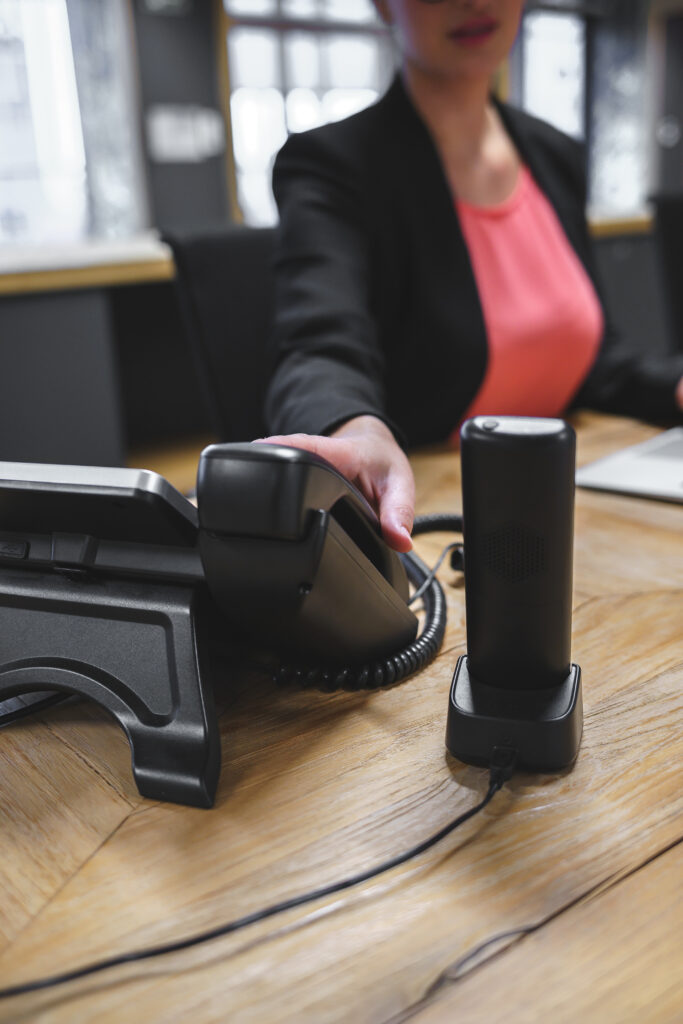
- Offices may include Shared Devices, also known as common area phones.
- Hoteling spaces may be equipped with hot desk-capable Shared Devices.
- SIP phones are uncommon in non-academic offices.
- These offices frequently include one or more Teams-equipped conference rooms.
- Overhead paging is generally not used in these environments.
Call Handling and Shared Services
- Users may participate in Teams auto attendants, call queues, or contact center workflows.
- Shared Device accounts may be configured as call queue agents for student workers who do not have individual Teams accounts.
- Larger departments may have their own reception desks, while some institutions may operate multiple reception points across campus.
- Colleges and universities may also need temporary phone banks for fundraising campaigns or alumni outreach.
Academic Offices
Academic offices may support individual departments, such as physics or fine arts, or larger schools and colleges, such as a School of Social Sciences, College of Pharmacy, or School of Humanities. Their staffing, responsibilities, and calling requirements can vary widely.
Staffing and User Profile
- Staff size varies by department, school, or college.
- Some employees may support multiple departments.
- Year-round staffing levels may vary.
- Administrative assistants may support one or more faculty members and may have different responsibilities for each.
- Student workers may also support these offices and may not have individual Microsoft Entra ID or Teams accounts.
Calling and Voicemail
- Users typically have calling requirements similar to information workers in commercial organizations.
- Most users have direct inward dial numbers and voicemail.
- Teams accounts may use Calling Plans, Pay-As-You-Go, Operator Connect, or Direct Routing.
- Shared Calling may also be appropriate for some users.
- Some administrative assistants may require delegation or configurable line keys.
Devices and Workspaces
- Shared Devices may be used by student workers who do not have individual Teams accounts.
- SIP phones are generally uncommon in academic offices.
- Departments, schools, or colleges may have a Teams-equipped conference room.
- Overhead paging is generally not used in these environments.
Call Handling and Shared Services
- Office staff typically answer calls to the department’s main number through a Teams auto attendant and call queue.
- Most academic offices have few additional auto attendant or call queue workflows beyond the main departmental number.
- Shared Device accounts may be configured as call queue agents for student workers.


Faculty
Work Patterns and Office Use
- Full-time and tenured faculty members typically have dedicated offices, although this varies by institution.
- Graduate assistants and teaching assistants may use faculty offices for scheduled office hours.
- Faculty members commonly set their Teams presence to Do Not Disturb while teaching or completing focused work.
Devices and Access
- Most faculty members use institution-provided laptops or Surface devices.
- A physical desk phone may be provided when required, but many faculty members can use the Teams desktop and mobile clients.
Calling and Voicemail
- Most faculty members have direct inward dial numbers and voicemail.
- Teams accounts may use Calling Plans, Pay-As-You-Go, Operator Connect, or Direct Routing.
- Shared Calling may also be appropriate for some users.
- International calling may be enabled for faculty members whose roles require it.
Call Handling and Delegation
- Faculty members are generally not configured as delegates or delegators.
- They are rarely assigned to auto attendants, call queues, or contact center workflows.
Convenience Or “House” Phones
Primary Use
- Convenience phones may be placed throughout campus for general access.
- They are primarily used for on-campus calls and emergency calls to 911.
- Some devices may remain in service year-round.
Devices and Licensing
- Most convenience phones use a Teams Shared Device account.
- Hot desking is generally not enabled.
- Shared Calling may provide outbound calling without assigning an individual Calling Plan or Pay-As-You-Go license.
Calling and Voicemail
- These phones typically do not require voicemail.
- Calling permissions are usually limited to on-campus numbers and emergency services.
- They are not intended for individually assigned users.
Campus Safety “Blue” Phones
Purpose and Placement
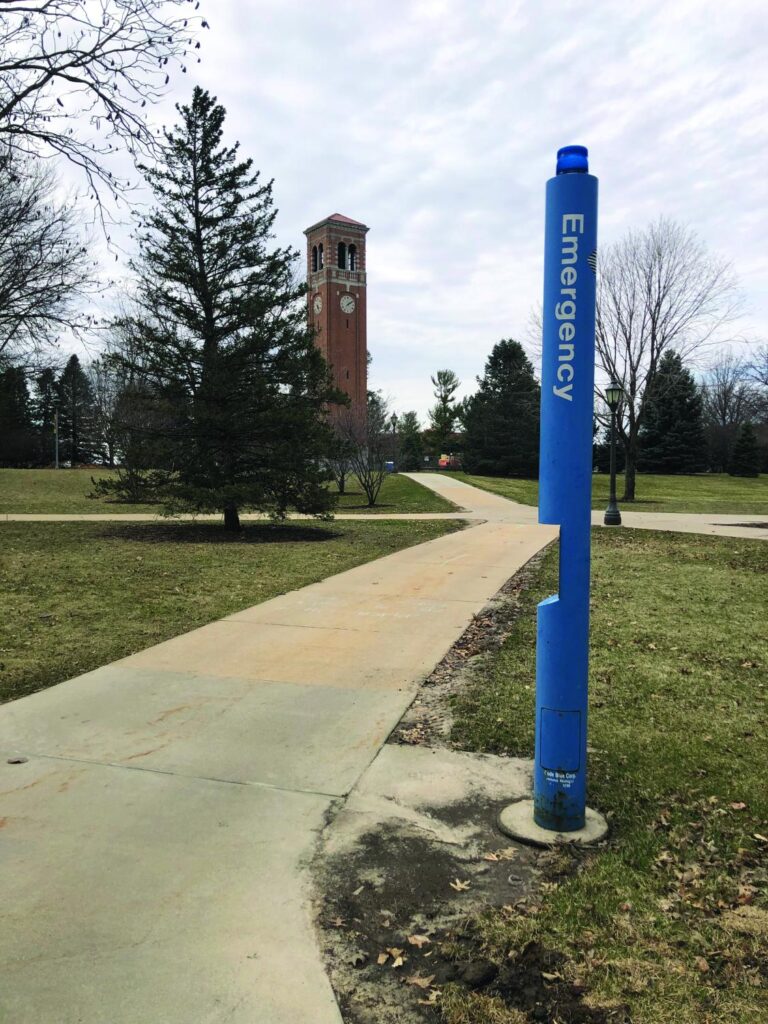
- Blue phones are highly visible emergency devices located throughout college and university campuses.
- They provide immediate access to campus police, security personnel, or emergency services.
Phone System Integration
- Blue phones are typically separate from the institution’s primary phone system.
- They are rarely deployed as Microsoft Teams devices.
- Their configuration should prioritize availability, location identification, and rapid emergency response.

Classroom Phones
Primary Calling Requirements
- Classroom phones are primarily used for emergency calls and callbacks from public safety answering points.
- They may also support calls to and from other phones on campus.
- Outbound calls to other public switched telephone network numbers may be restricted.
- Most classroom phones do not require year-round use.
Devices and Number Assignment
Classroom phones may be deployed as:
- Native Teams phones signed in with a Teams Shared Device account
- SIP phones connected through the Teams SIP Gateway and signed in with a Teams Shared Device account
- SIP phones registered directly to a Session Border Controller without a Teams user sign-in
Phones or their associated accounts may be assigned a direct inward dial number or an internal extension. A DID allows external callers and public safety personnel to call the classroom phone directly.
Calling, Licensing, and Voicemail
- Teams accounts may use Calling Plans, Pay-As-You-Go, Operator Connect, or Direct Routing.
- Shared Calling may also be used to reduce the need for individually assigned phone numbers or calling plans.
- Classroom phones generally do not require voicemail.
- They are not typically assigned to auto attendants, call queues, or contact center workflows.
Resiliency and Emergency Communications
- Direct Routing deployments may include Survivable Branch Appliances to provide limited calling resiliency during a Teams service or internet outage.
- Some supported Teams phone models can switch to SIP mode during an outage when deployed with Direct Routing.
- Higher education classrooms typically do not use overhead paging systems, although requirements vary by campus.
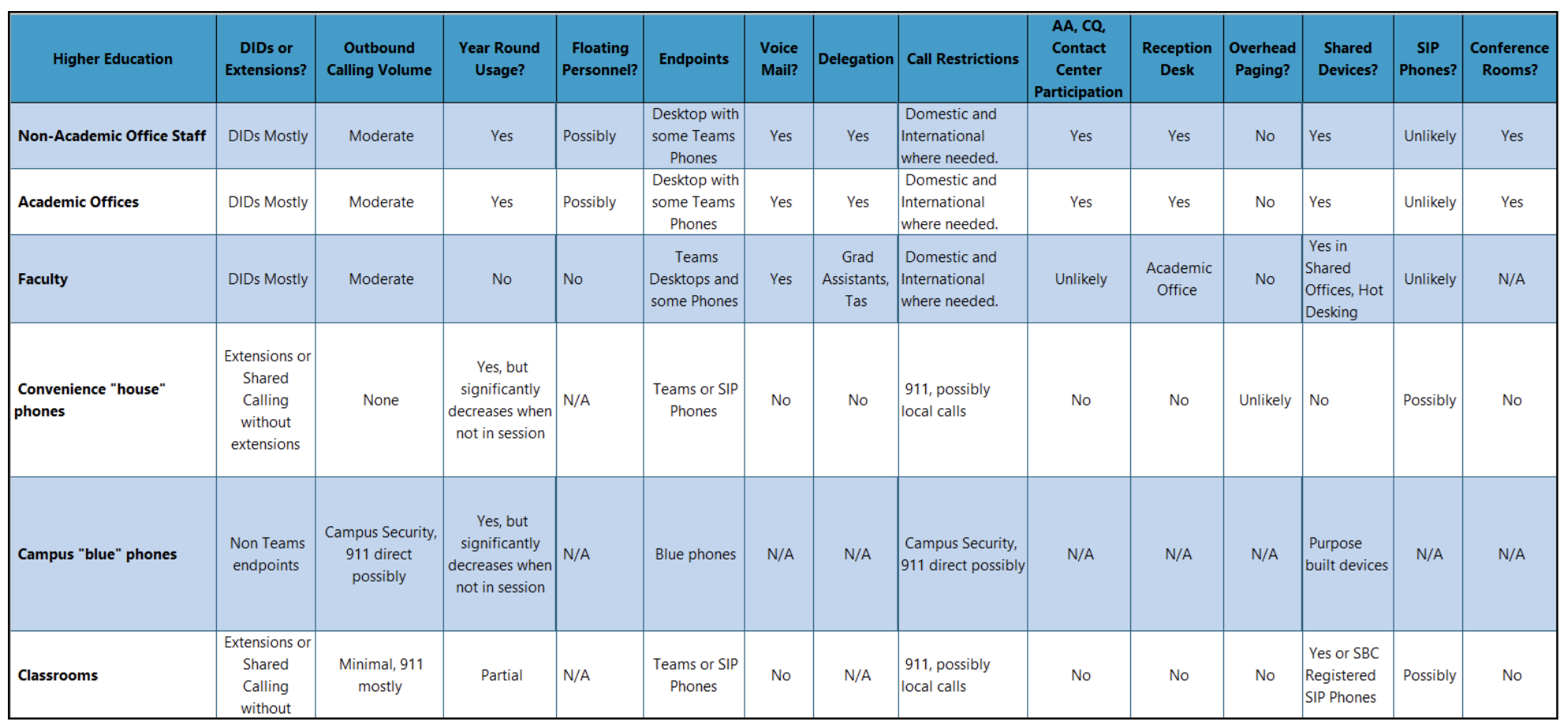
The following table compares typical calling, device, voicemail, routing, and workspace requirements across six common higher education use cases:
Summary
Identifying the “use cases” at an educational institution is one of the most important steps in designing a Teams Phone solution. The resultant design will usually include typical Teams users, Native Teams Phones, Shared Devices and Shared Calling. It may also include SIP phones that are not integrated into Teams.
Within each of these use cases will be individual personas; users who need delegation and those who don’t, student workers, etc. This generally means that designing solutions for educational institutions can take longer than those for commercial enterprises and be significantly more complex. Determining the requirements for all the different user constituencies at the outset is critical in delivering a successful project.
eGroup is available and ready to answer any questions that you might have about Microsoft Teams, Teams Phone, and Teams Devices. If you need help with implementing or migrating to Microsoft Teams or Teams Phone or upgrading your devices, please reach out to us.

Design Teams Phone for Every User
Map your institution’s users, devices, emergency requirements, call flows, and licensing needs before choosing a Teams Phone architecture.