


Agent identity blueprints give Microsoft Entra administrators a repeatable way to manage authentication and inherited permissions across related AI agents. This guide uses three help desk agents to explain how permissions are approved, how the Agent 365 CLI sets up a blueprint, and how administrators manage agents together.

Every AI agent needs an identity, and someone who isn’t the developer should approve what it can reach. If you do that one agent at a time, you approve the same permissions again and again, and there’s no single place to turn a kind of agent off. It’s kind of like managing users without groups, nobody should do that. An agent blueprint is how Microsoft Entra solves that. You set it up once, approve it once, and control every agent made from it.
Say your team builds a help desk agent and rolls it out to IT, HR, and finance. That’s three agents. With a blueprint, it’s one setup and one approval. I’ll use that example the whole way through, and it’s the step I called “works with the employee’s access” in How Shadow AI Puts Company Data at Risk.
What Is An Agent Blueprint?
An agent blueprint is an object in Microsoft Entra that every agent identity is created from. An agent identity is what an agent signs in with, its own identity in Entra, separate from any person’s account. One blueprint can create many agents of the same kind (the limit is 250 agent identities), so the three help desk agents all come from one. Microsoft’s documentation calls it an agent identity blueprint.
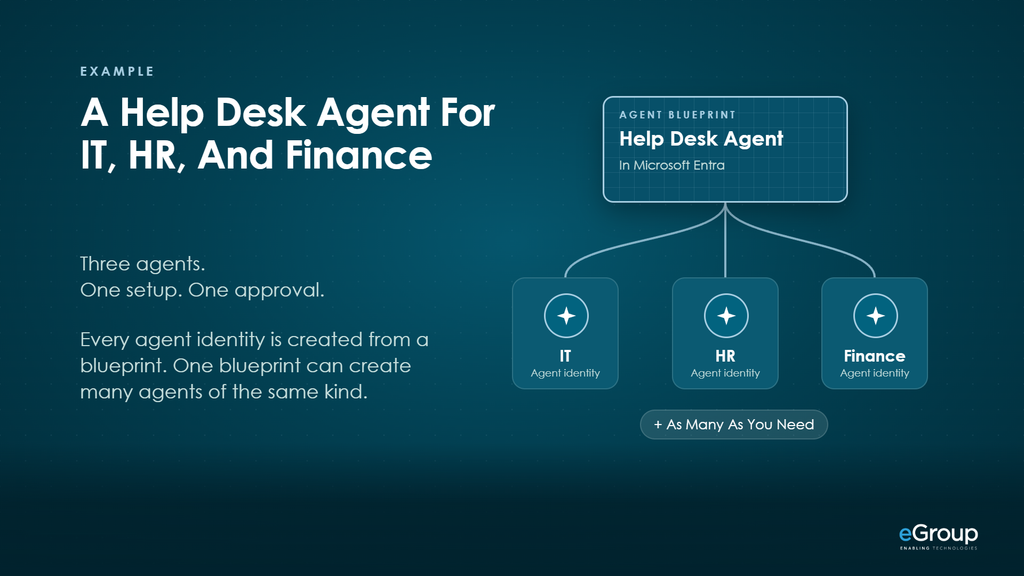
It will feel familiar if you’ve worked with app registrations and admin consent. The blueprint is where the setup and the approval happen, and the agent identities under it are what run.
What Does A Blueprint Hold?
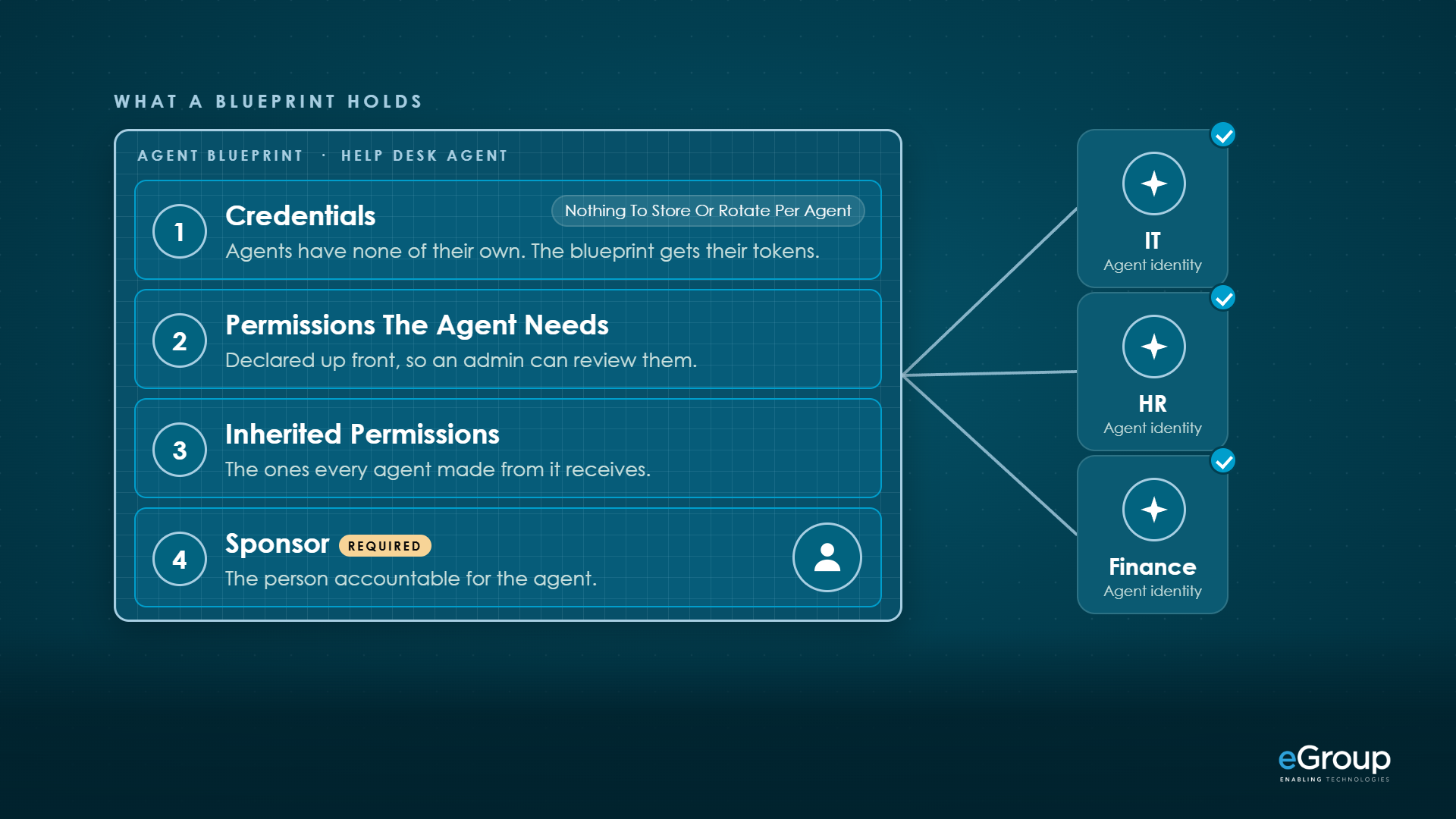
A blueprint holds four things: the credentials, the permissions the agent needs, which of those permissions every agent inherits, and a sponsor.
Credentials & Authentication
Start with the credentials. An agent identity has none of its own. The blueprint gets tokens for it, and a managed identity is the recommended way to do that in production, so there’s nothing on each agent to store or rotate. Secrets and certificates are supported, and Microsoft doesn’t recommend them for production.
Permissions & Inheritance
The permissions the agent needs are declared up front, so an admin can review them before anything is granted. Some of those are marked as inherited, which means every agent made from the blueprint receives them.
Sponsor & Owner
The sponsor is the person accountable for the agent, and a sponsor is required. An owner, the technical admin, is optional. Part 2 covers what the sponsor does once the agent is running.
How Does A Permission Reach An Agent?
A permission reaches an agent in three steps: the developer declares it on the blueprint, an admin approves it once, and every agent made from the blueprint inherits it.
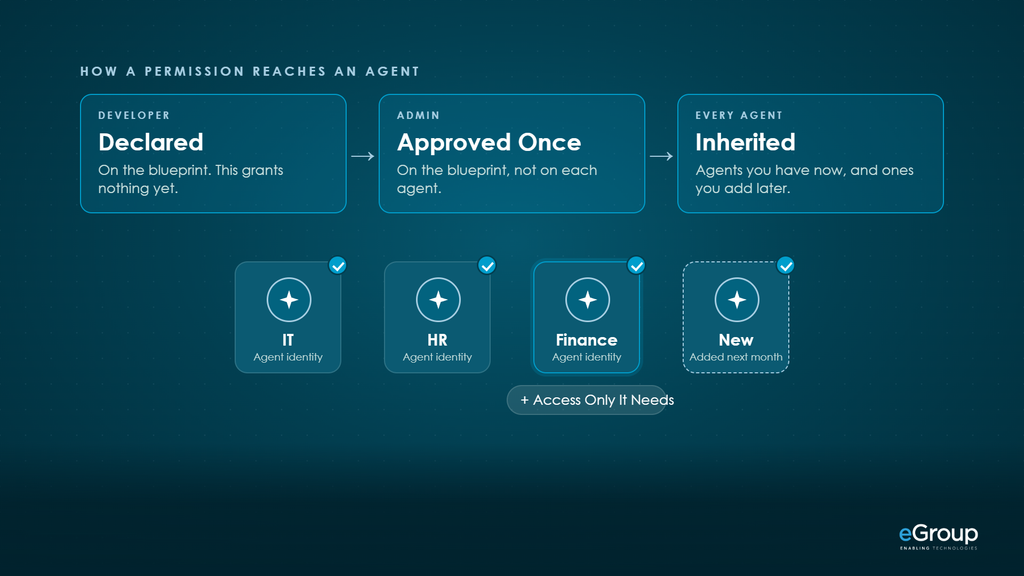
Declaring a permission on the blueprint doesn’t grant it. An admin approves it once, on the blueprint. If it’s marked as inherited, all three help desk agents get it, and so does a fourth one you add next month. Access that only one agent needs is granted to that agent alone. Adding an agent no longer means another approval.
Two details from Microsoft’s page on inheritable permissions will save you some confusion. Inherited permissions don’t show on the agent identity’s page in the Entra admin center. They only appear in the token. And a blueprint can’t hold Azure role assignments, so those go on each agent identity.
Creating One With The Agent 365 CLI
Creating The Blueprint
A developer creates the blueprint with one command, and an admin approves its permissions from a link. The Agent 365 CLI is the command line tool that connects a new agent to Microsoft Agent 365, Microsoft’s control plane for AI agents. A developer with the Agent ID Developer role, an Entra role for creating blueprints and agent identities, plus Contributor on the Azure subscription (the two roles the CLI reference lists), runs this:
a365 setup all --agent-name help-desk-agentIt creates the blueprint in Entra, sets the inherited permissions, and registers the agent. Microsoft’s registration guide says setup typically takes 3 to 5 minutes. Granting the permissions takes a Global Administrator, so the tool gives the developer a link to send over. The admin opens the link, reviews what the agent is asking for, and approves.
Adding Permissions Later
To add access later, a Global Administrator runs one more command, which adds the permission and approves it in one step. In this example the ID is Microsoft Graph:
a365 setup permissions custom --resource-app-id 00000003-0000-0000-c000-000000000000 --scopes Mail.Send,Chat.CreateWhen it’s done, the blueprint is listed in the Entra admin center under Entra ID, then Agents, then Agent blueprints. The developer doesn’t need to be a Global Administrator, and the admin sees what the agent is asking for before approving it. I wrote about setting up the CLI in September.



Who Creates The Blueprint?
Who creates the blueprint depends on where the agent was built.
| Where The Agent Was Built | Who Creates The Blueprint |
|---|---|
| Microsoft Copilot Studio | Microsoft creates it for you, and every Copilot Studio agent comes from that one blueprint |
| Microsoft Foundry | Microsoft creates it for you |
| Built by your developers | They create it, with the CLI, Microsoft Graph, or the Entra admin center |
| Bought from another vendor | The vendor built it, and it’s added to your tenant the first time someone signs in and approves the agent |
Either way, it shows up in Entra as a blueprint you can see and manage. Microsoft covers each path in its page on how agent identities get created, and Copilot Studio and Foundry each have their own pages. Copilot Studio agents created before May 2026 keep their app registrations until they’re migrated. As of October 2026, the admin center’s wizard for creating a blueprint is labelled Preview, and an agent that needs its own mailbox also gets a user account, which is available only through Frontier, Microsoft’s early-access program.
Managing Agents Together
Because the three help desk agents share a blueprint, you manage them together. Put a Conditional Access policy on the blueprint and it covers all of them. Disable the blueprint and none of them can sign in. Delete it and every agent identity made from it is cleaned up with it. If something goes wrong with the help desk agent, you stop all three in one action instead of tracking each one down.
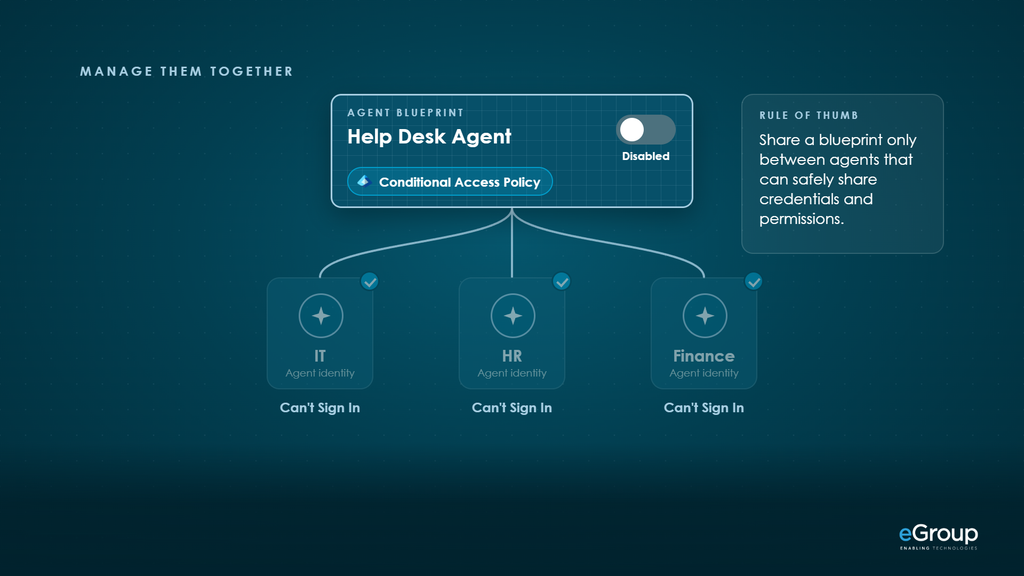
That’s also the reason to be careful about what shares a blueprint. Share one only between agents that can safely share credentials and permissions.
My Take
I’ve always thought about agents the way I think about application developers, and I’m an old application developer. When I built applications, the security admin gave my app the credentials to reach other systems and governed what it had access to. A blueprint is that same arrangement, applied to a whole group of agents.
I’d keep one blueprint for each group of agents that can safely share credentials and permissions, which is also Microsoft’s guidance. The help desk agents fit that. If one of them needs something the others shouldn’t have, I’d grant that to the one agent, or give it a blueprint of its own.
You won’t create the blueprint for every agent. For agents built in Copilot Studio or Foundry, or bought from a vendor, Microsoft or the vendor creates it. Your part is the same either way, because the blueprint still shows up in Entra, and the policy and the off switch work the same.
Part 2 covers what happens after day one: who’s accountable for each agent, what happens when that person moves on, and how access ends.


Govern AI Agents With Confidence
Understanding blueprints is the first step. eGroup’s AI Operational Framework helps your team establish repeatable controls for agent permissions, accountability, and lifecycle management.